Lists: upload, add people and call a list
Upload a spreadsheet, add people from a profile or a whole search page, then call down the list one person at a time.
Lists and calling a list are part of a paid plan.
Step 1: Upload a spreadsheet
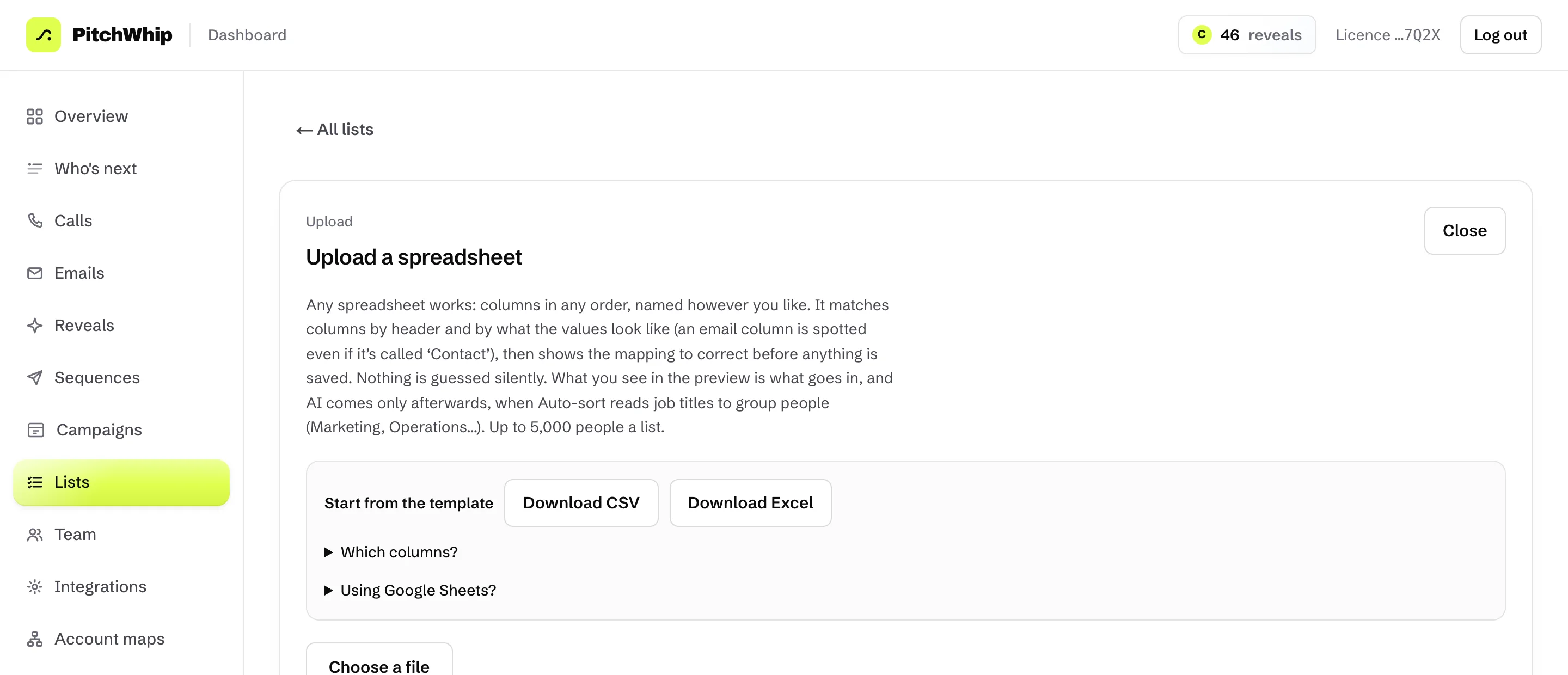
In the dashboard, open Lists and press Upload a spreadsheet. Any .xlsx, .xls or .csv works, with columns in any order: PitchWhip matches them by header and by what the values look like, and shows you a preview before anything is saved. Up to 5,000 people a list.
Not sure how to lay it out? Press Download CSV or Download Excel to start from the template. New list makes an empty list instead.
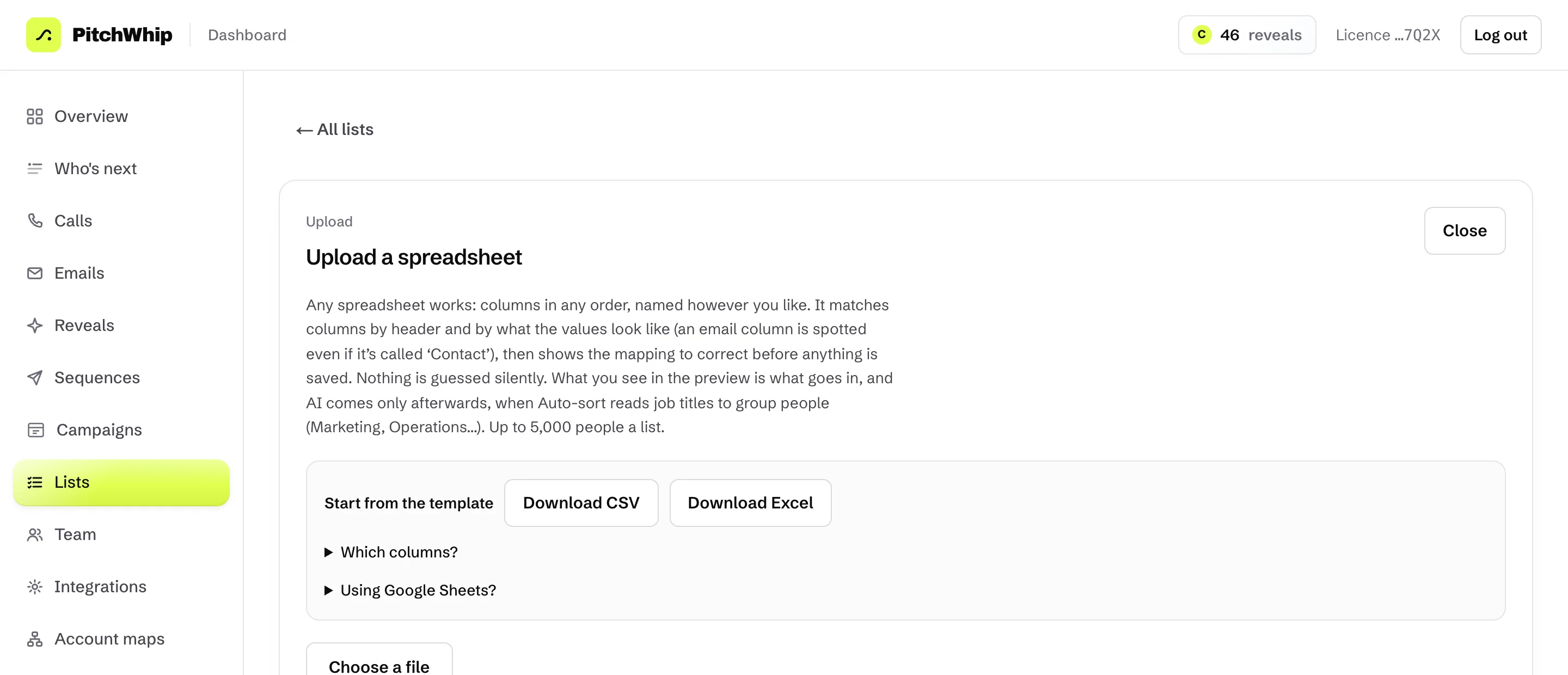
Upload a spreadsheet: start from the template, then Choose a file. Click the picture to see it full size. Step 2: Add people from LinkedIn
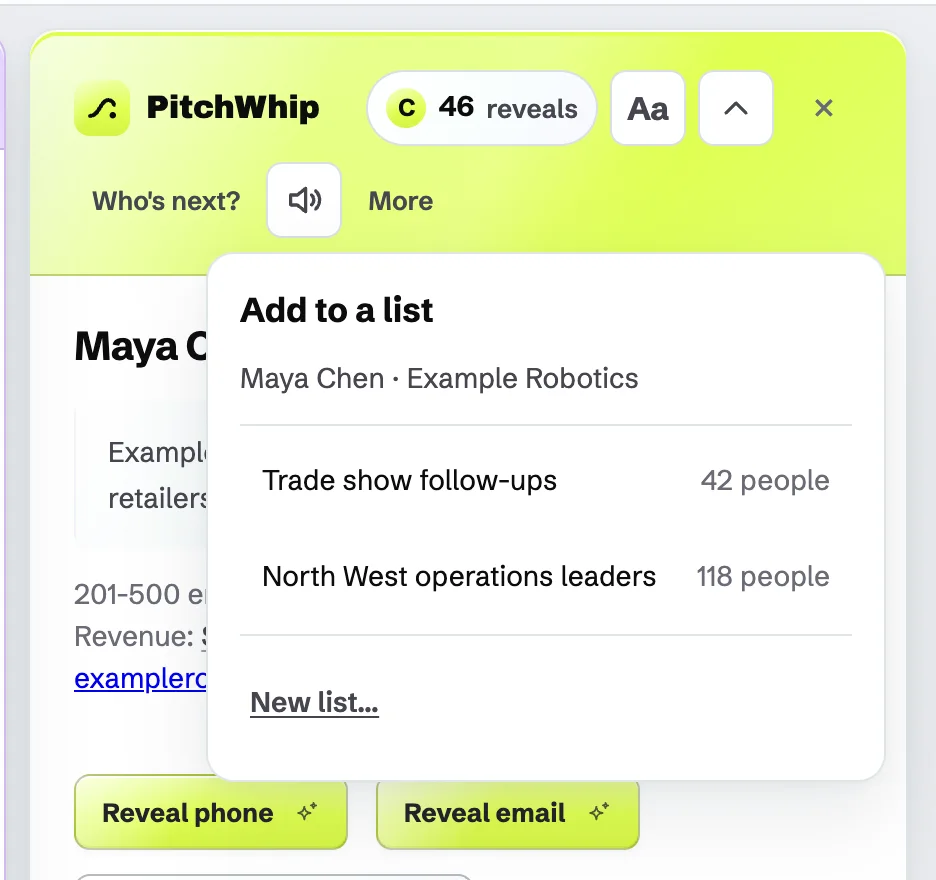
On someone's profile, open More in the panel and choose Add to list, then pick a list or New list....
On a LinkedIn people search or a Sales Navigator search, an Add N people to a list button adds everyone on the page you are looking at. No reveals are used. Turn the page and press it again for the next page.
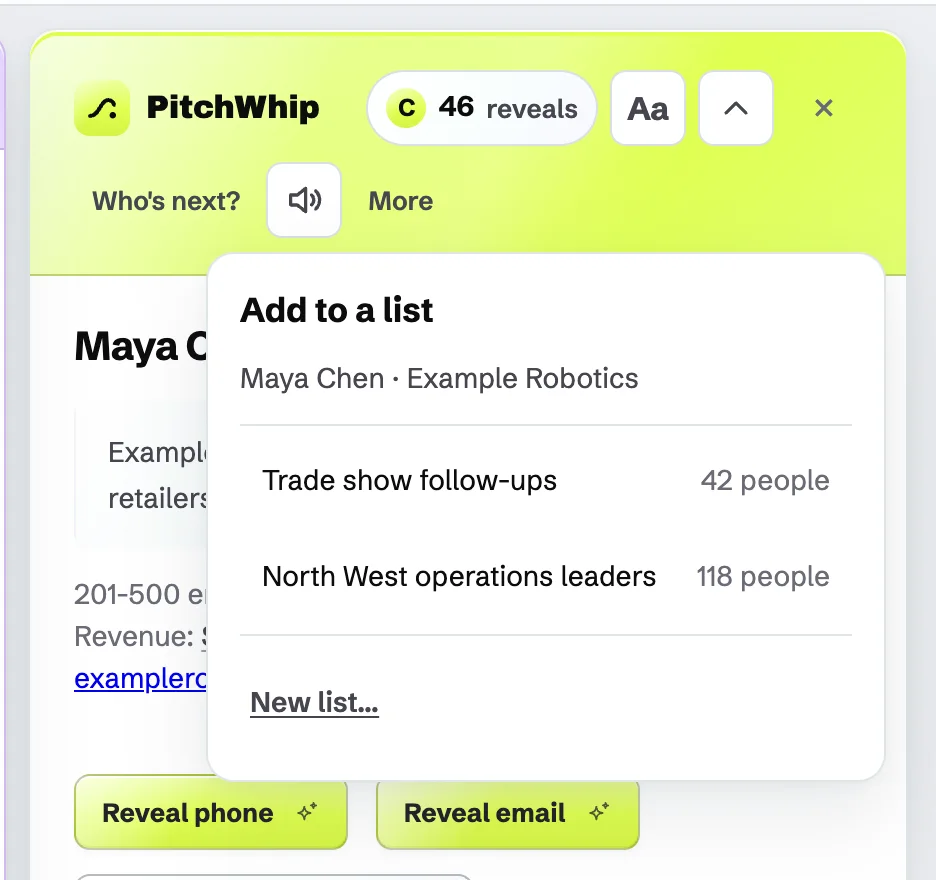
Add to a list: pick one of your lists or make a new one. Click the picture to see it full size. Step 3: Get a list ready to call
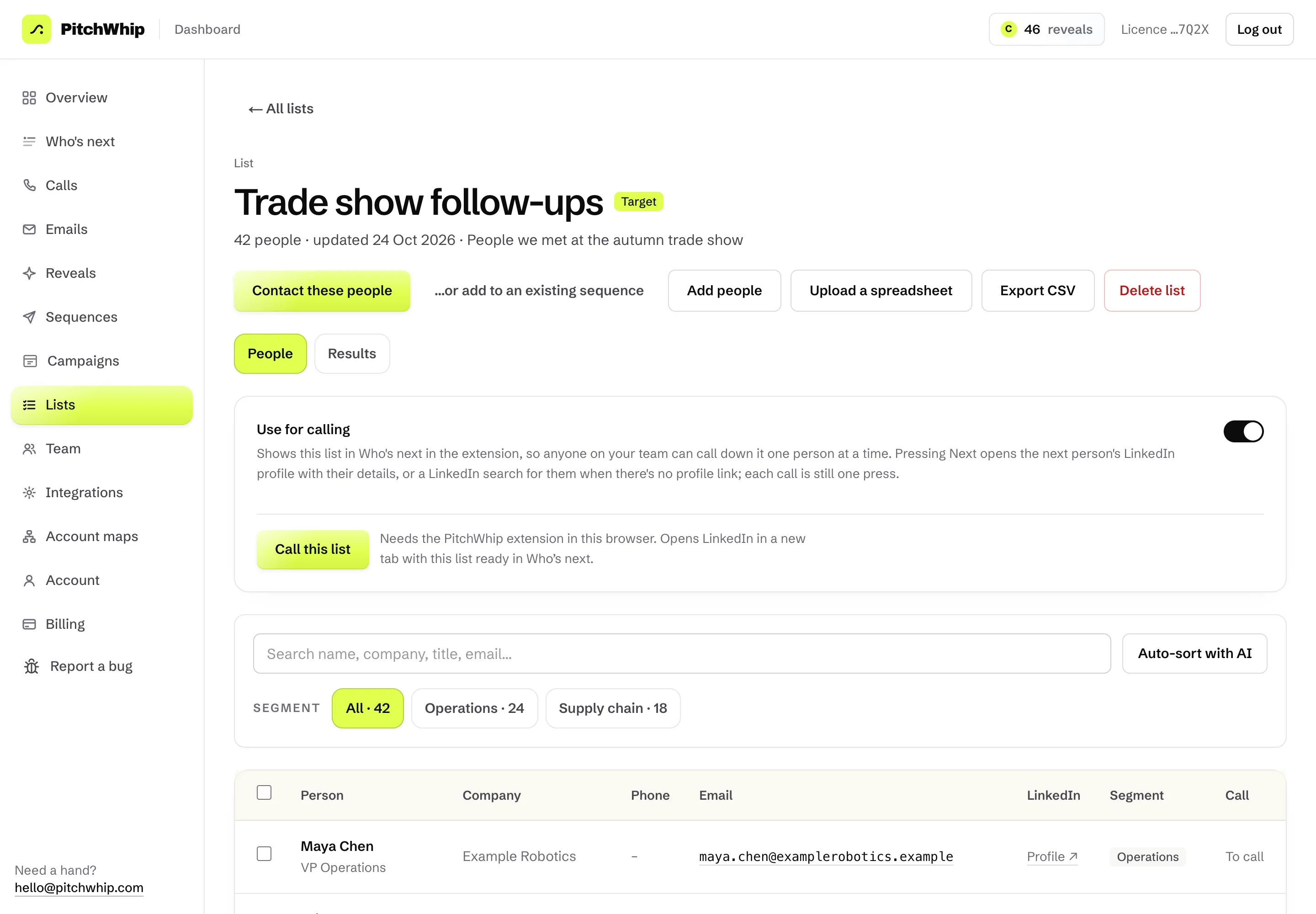
Open a list in the dashboard. Switch on Use for calling so it shows in Who's next in the extension for everyone on your team. Segments group people (Operations, Supply chain and so on), and Auto-sort with AI can sort them for you.
Press Call this list to open LinkedIn in a new tab with the list ready in Who's next.
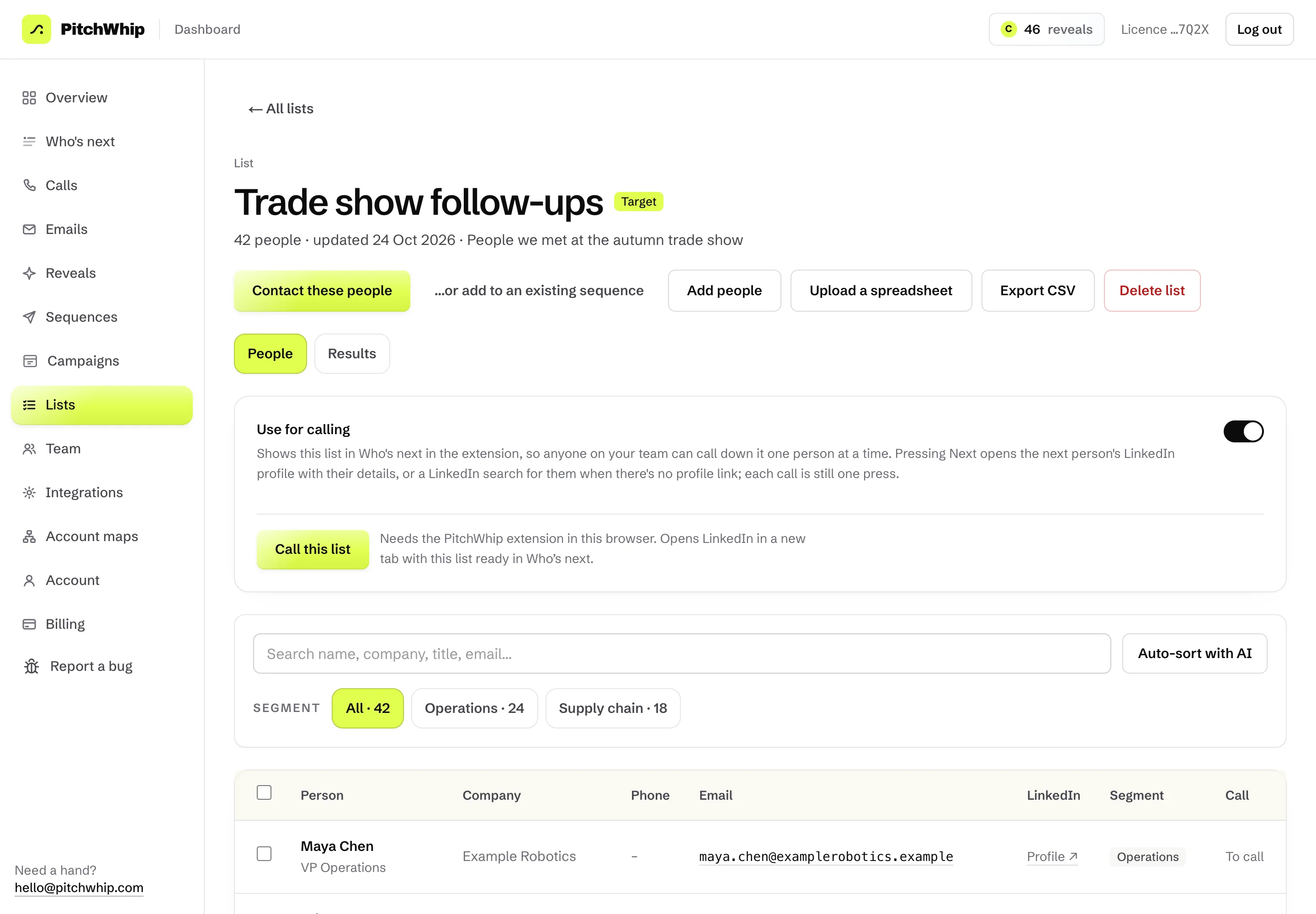
A list opened in the dashboard: Use for calling, Call this list and the people on it. Click the picture to see it full size. Step 4: Start calling
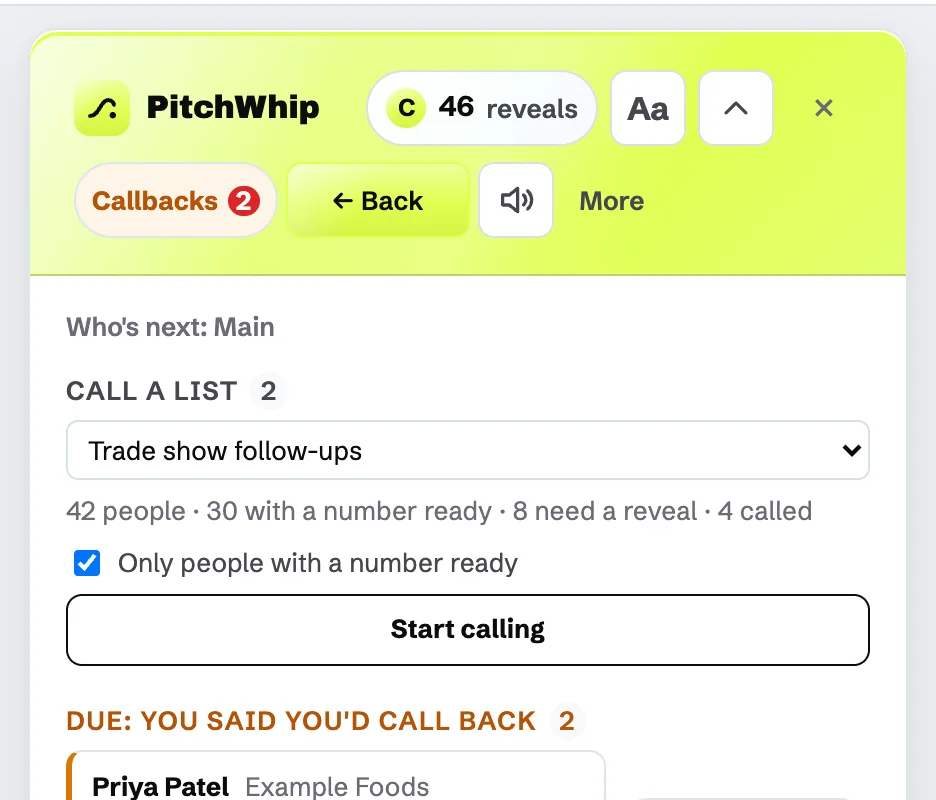
In the panel, open Who's next?, choose the list under Call a list and press Start calling. Tick Only people with a number ready to skip anyone you haven't revealed yet.
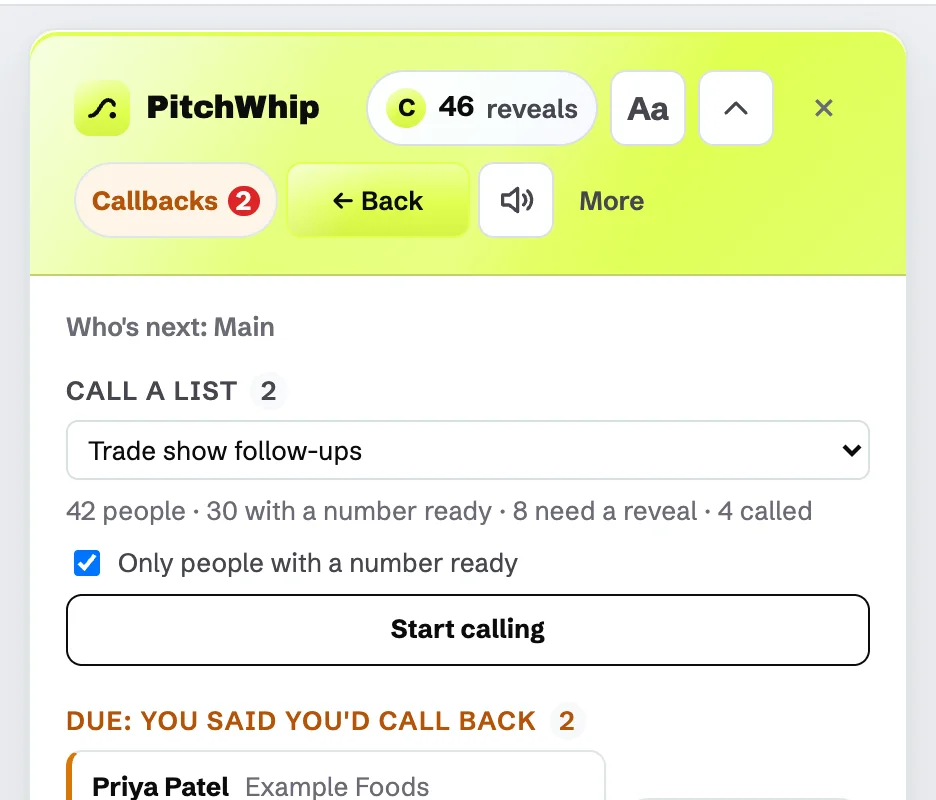
Call a list in Who's next: the list, how many have a number ready, and Start calling. Click the picture to see it full size. Step 5: Call down the list
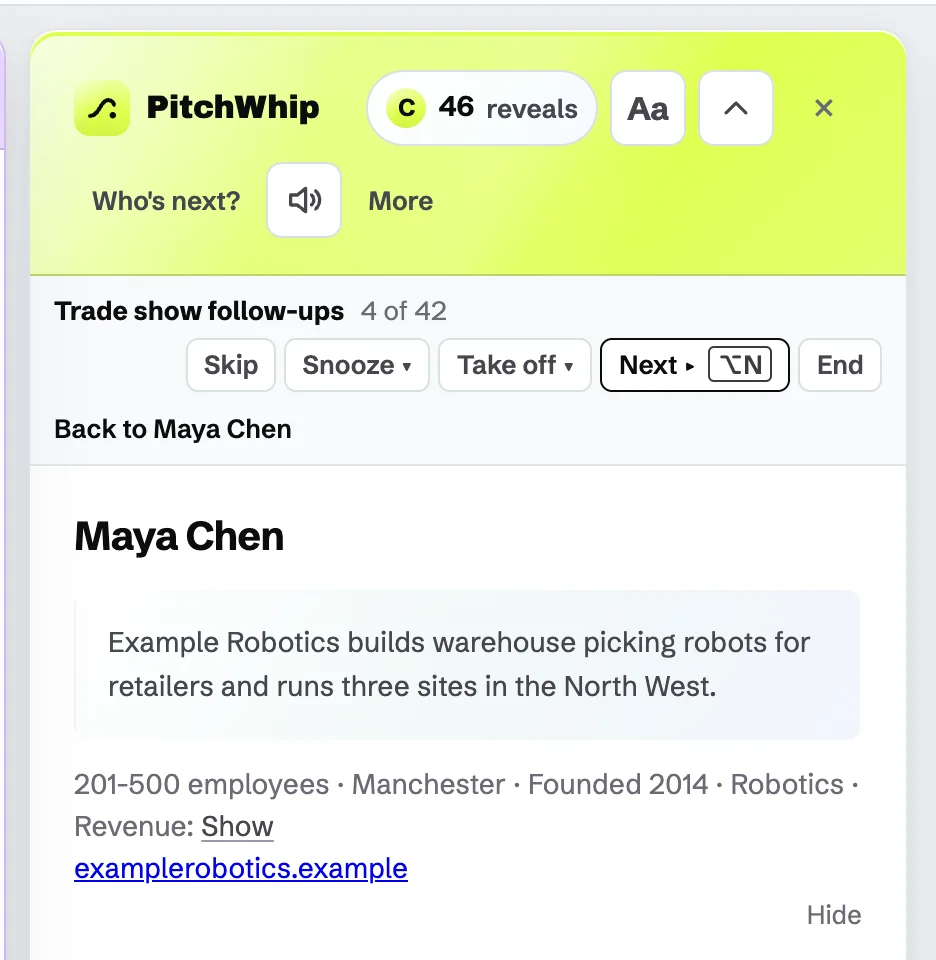
Each person's profile opens with their brief ready. When you have logged the call, press Next for the next person; nothing moves on by itself. Skip, Snooze and Take off handle people you can't call now, and End stops.
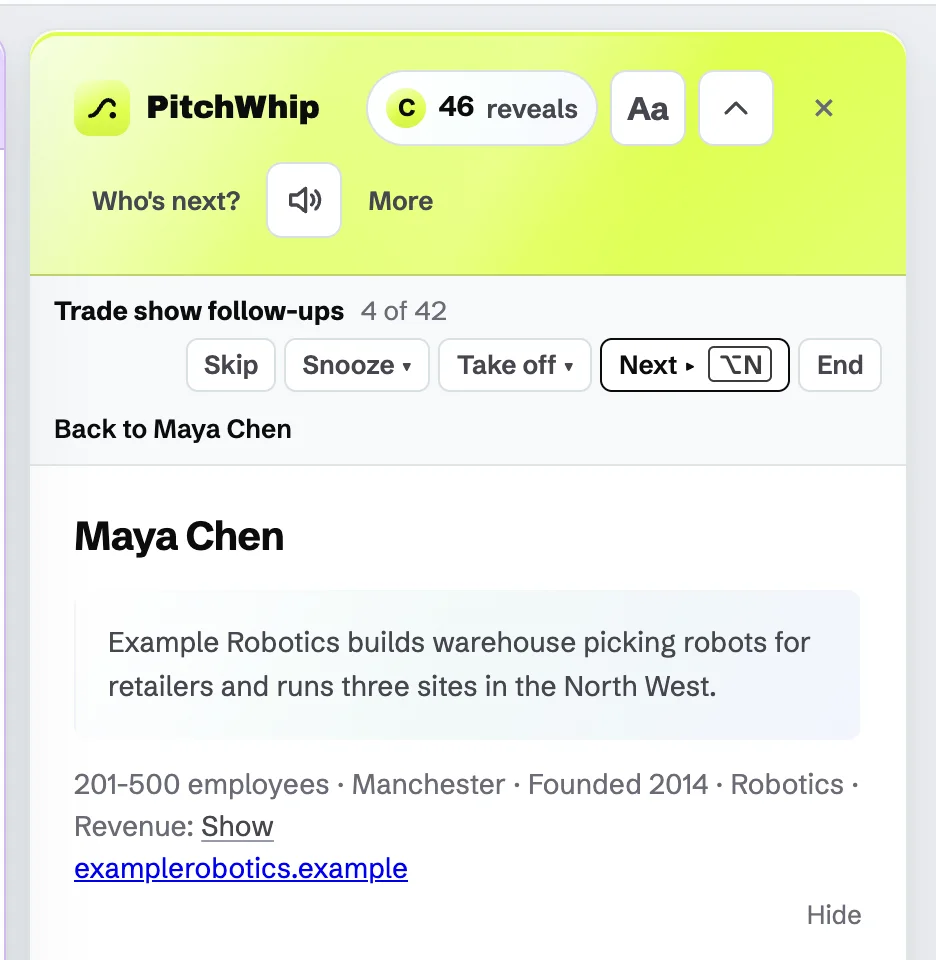
Calling a list: who you are on, Skip, Snooze, Take off, Next and End. Click the picture to see it full size.
Common problems
- My list doesn't show under Call a list.
- Switch on Use for calling for that list in the dashboard, then open Who's next again.
- Start calling says Nobody left to call.
- Everyone on the list has been called, or nobody has a number ready. Untick Only people with a number ready, or reveal some numbers first.
- Someone asked never to be called.
- Add them to a Do not contact list in the dashboard. PitchWhip then keeps them out of your team's lists, sequences and list calling.
Still stuck? The full guide covers every setting, or write to hello@pitchwhip.com and a person replies within a working day.