Make a call and log it
Call from your browser with the Calling add-on, or from your own phone, then log the outcome in one press.
Calling from your computer needs a paid plan with calling minutes. Logging calls you make on your own phone works on every plan.
Step 1: Set up calling once
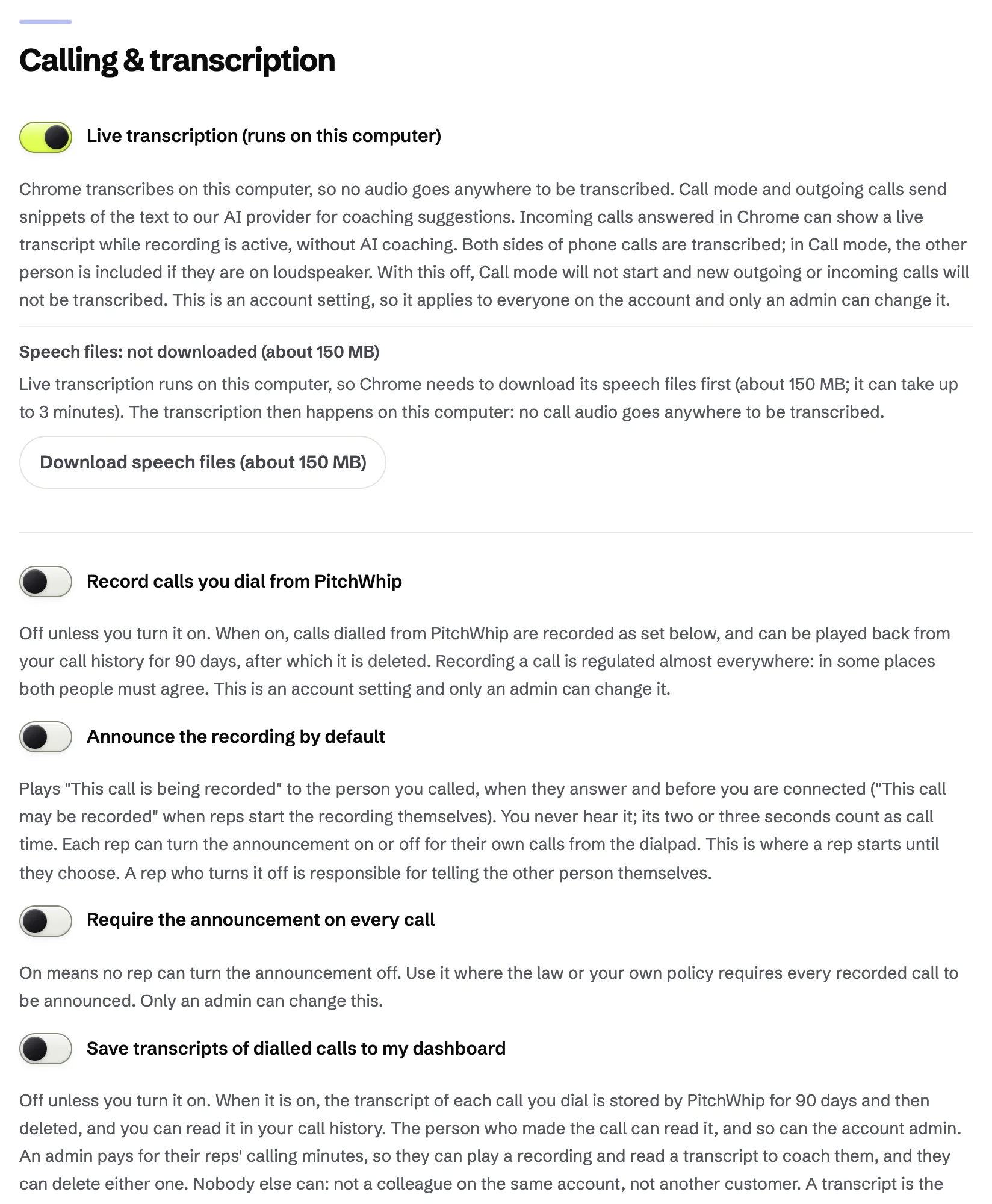
Your account admin opens Settings, Calling & transcription, and accepts the calling notice once for the team. Here you also choose whether calls are recorded and transcribed. Recording is off unless the admin turns it on.
Buy calling minutes in the dashboard under Billing (prices are on our Pricing page). Then choose a PitchWhip number for your seat in Settings, or use a caller ID you have verified, such as your own mobile. Use only a number you have permission to use and that people can call back.
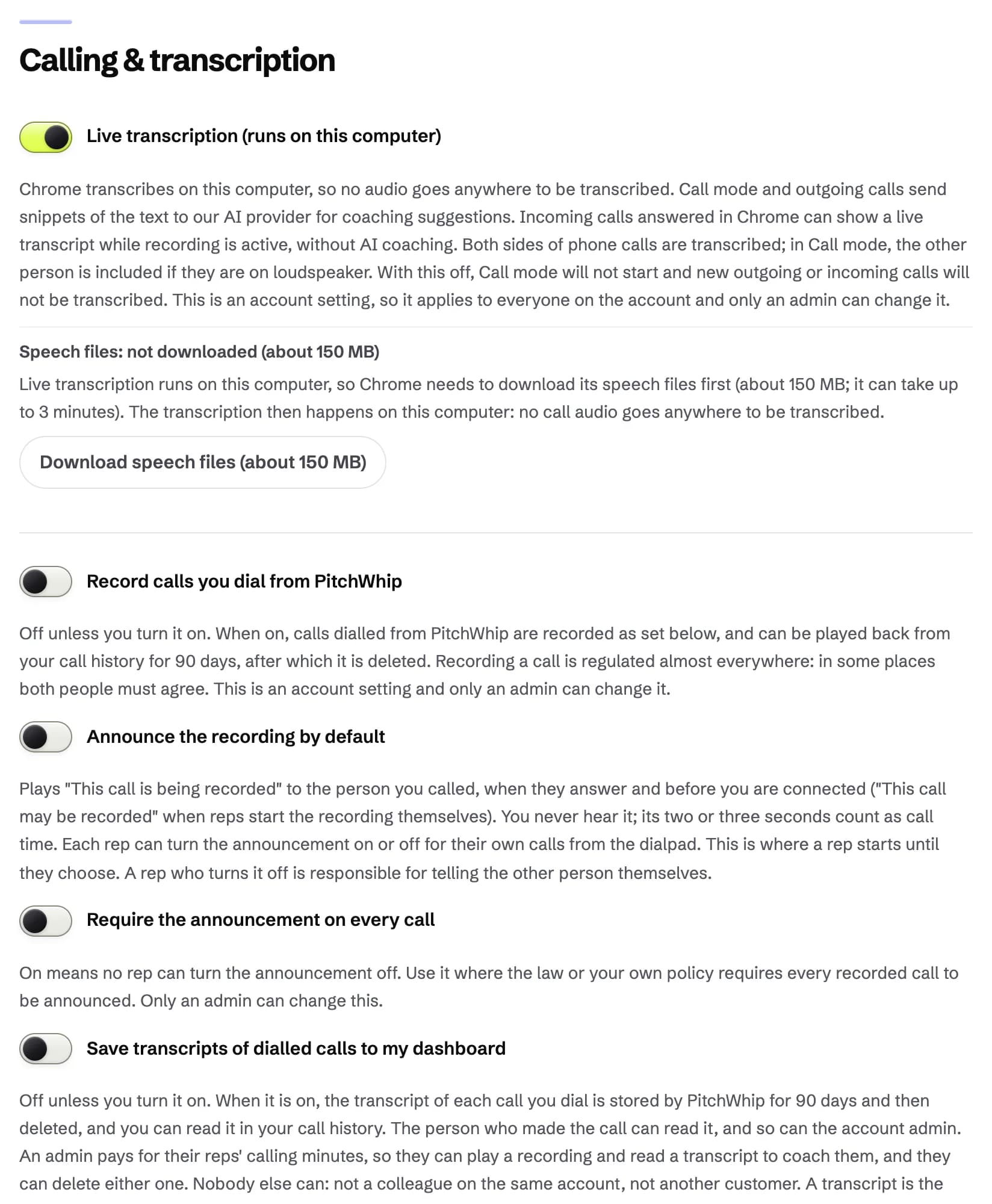
Settings, Calling & transcription: live transcription and the recording choices. Click the picture to see it full size. Step 2: Click the number and press Call
Click a revealed number in the panel and choose Call. The call runs in your browser over the internet: your headset or laptop microphone is the phone.
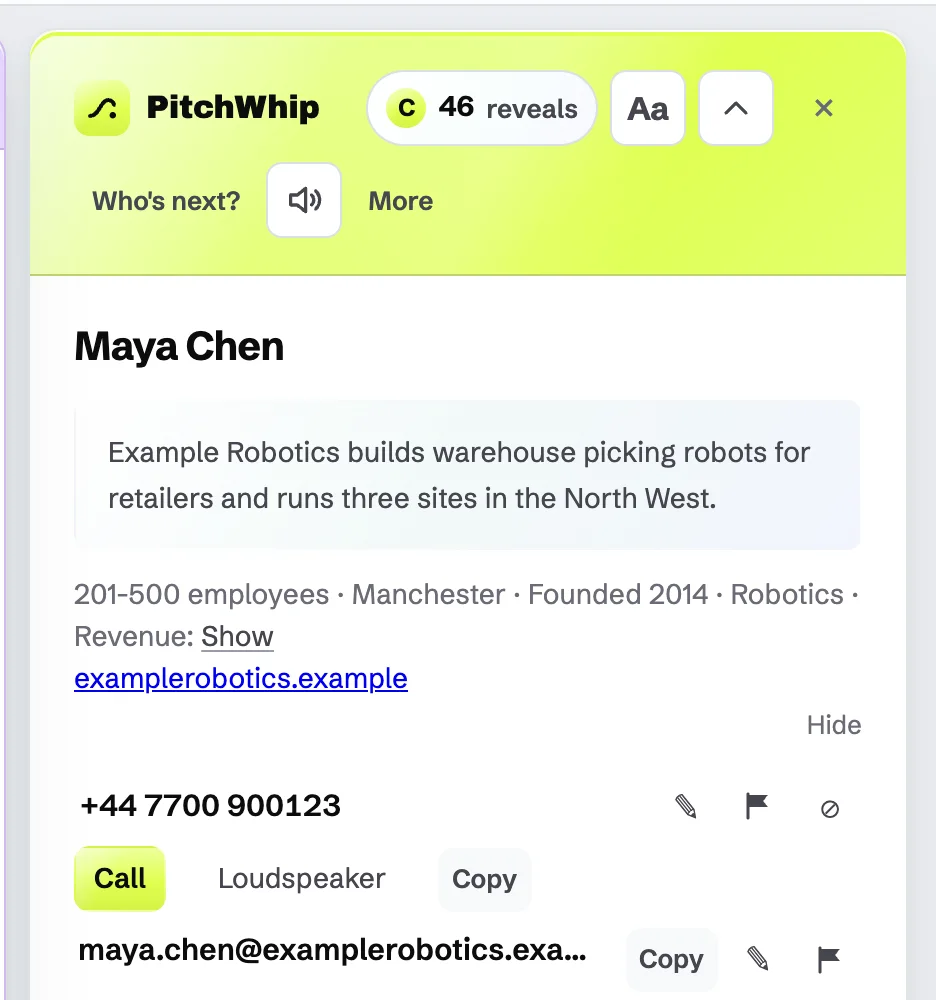
Loudspeaker is for a call on your own phone: PitchWhip listens on speaker and suggests answers to objections. Copy copies the number for your own phone.
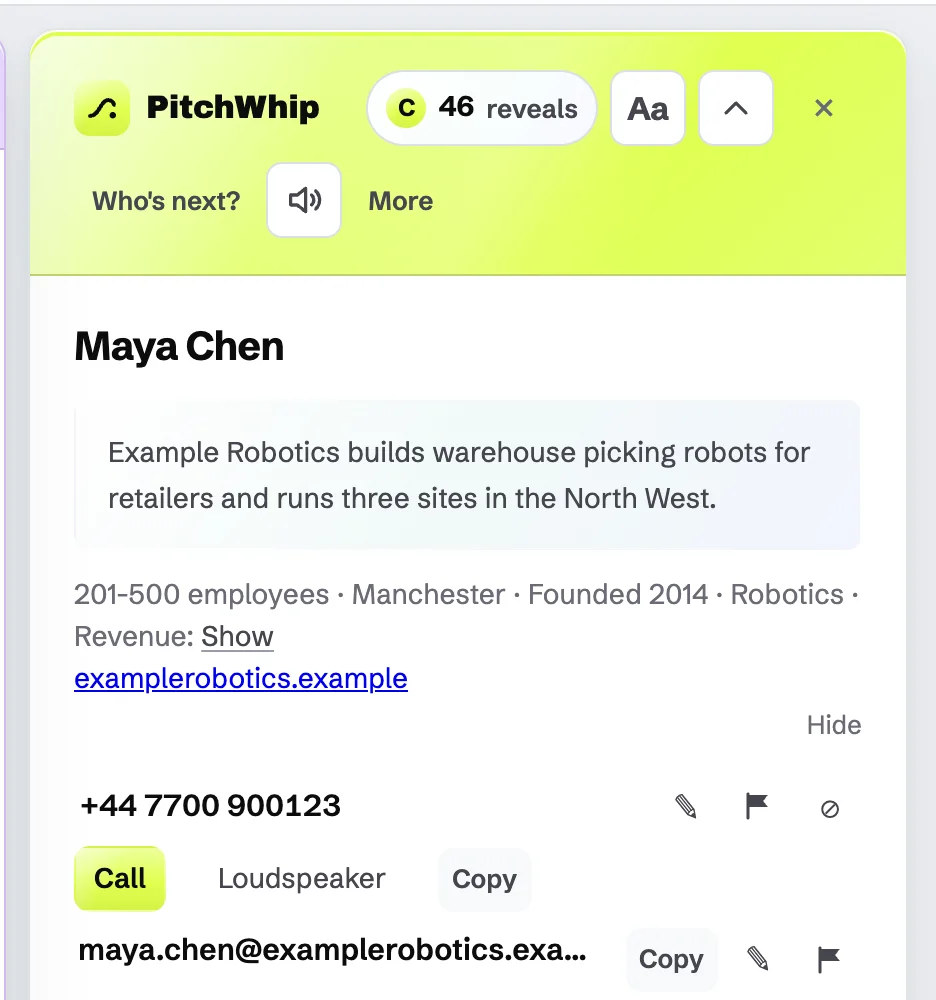
A revealed number with Call, Loudspeaker and Copy. Click the picture to see it full size. Step 3: On the call
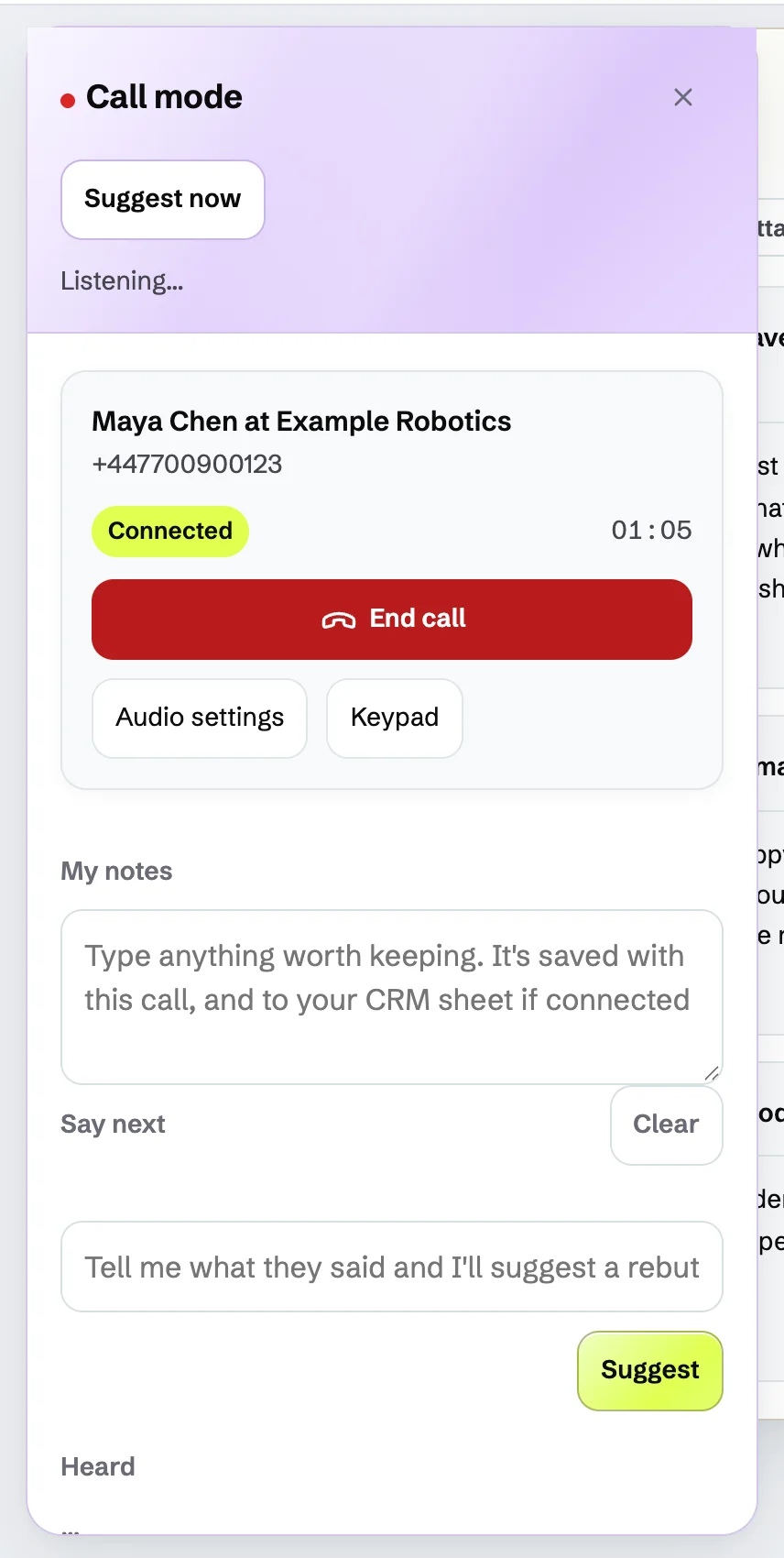
The call card shows the person, the timer and End call, with Audio settings and Keypad. Type anything worth keeping under My notes: it is saved with the call.
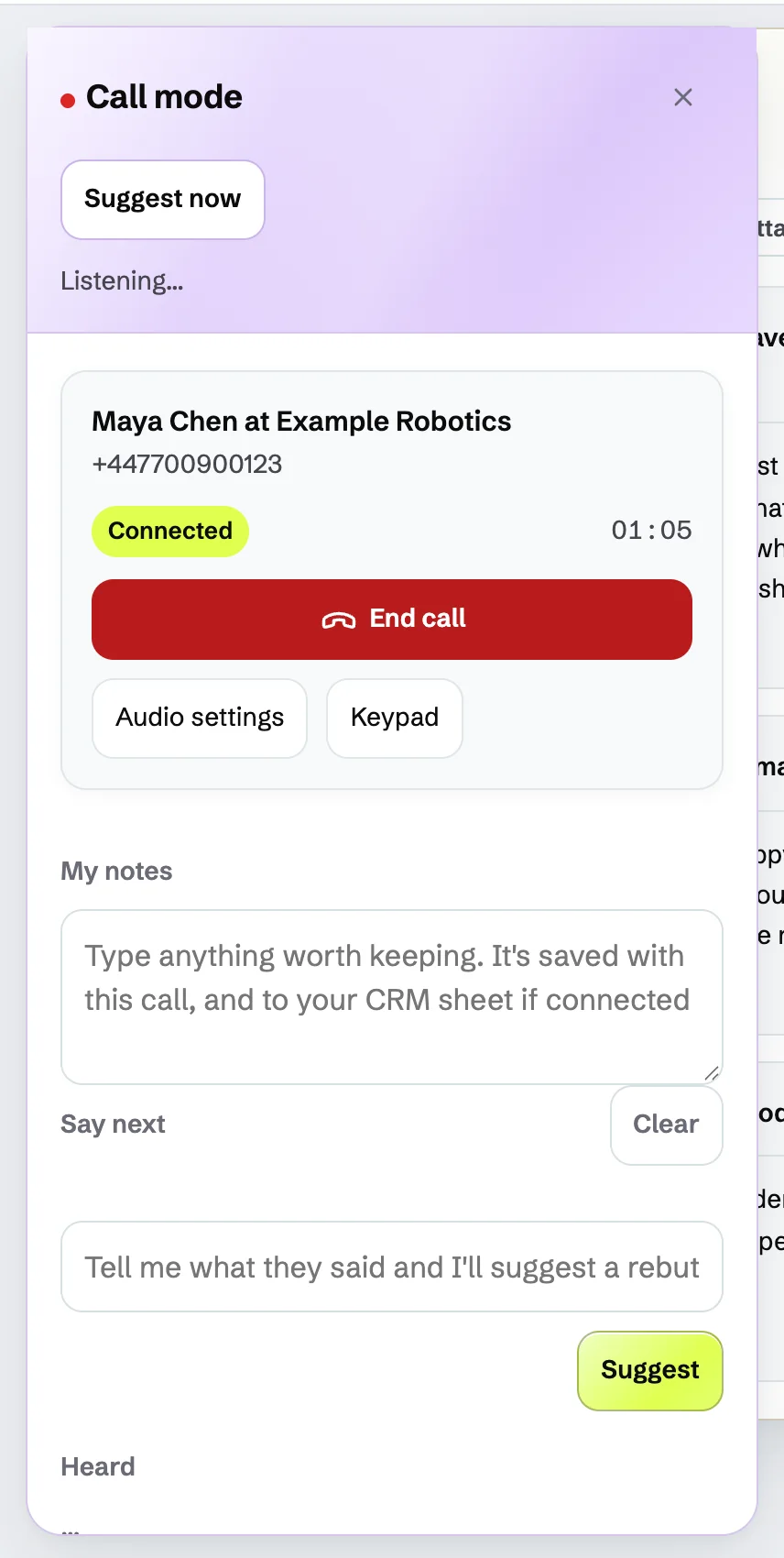
A call in progress: the timer, End call, Audio settings, Keypad and your notes. Click the picture to see it full size. Step 4: Ring a number you already have
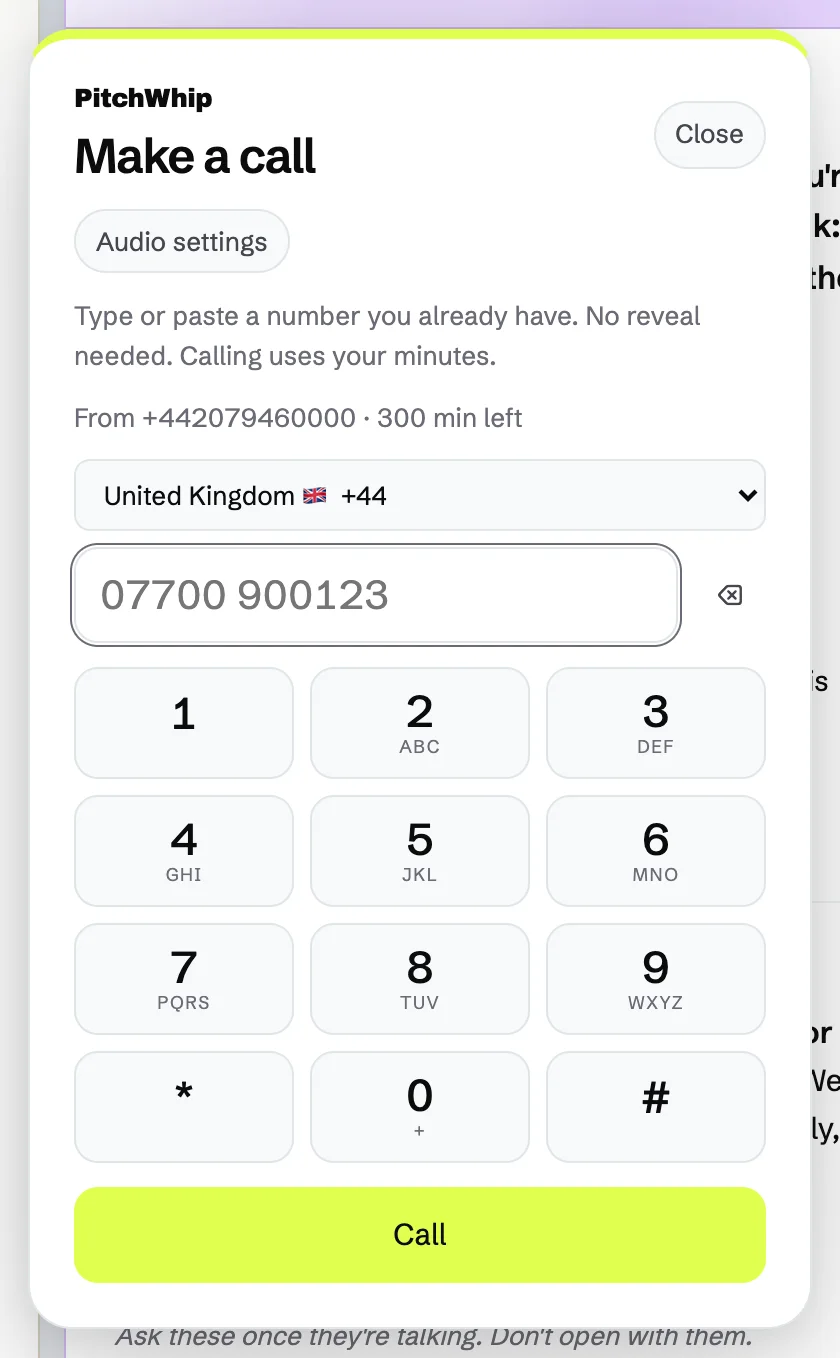
Open More in the panel and choose Dial a number. Pick the country, type or paste the number and press Call. No reveal is needed; the call uses your calling minutes.
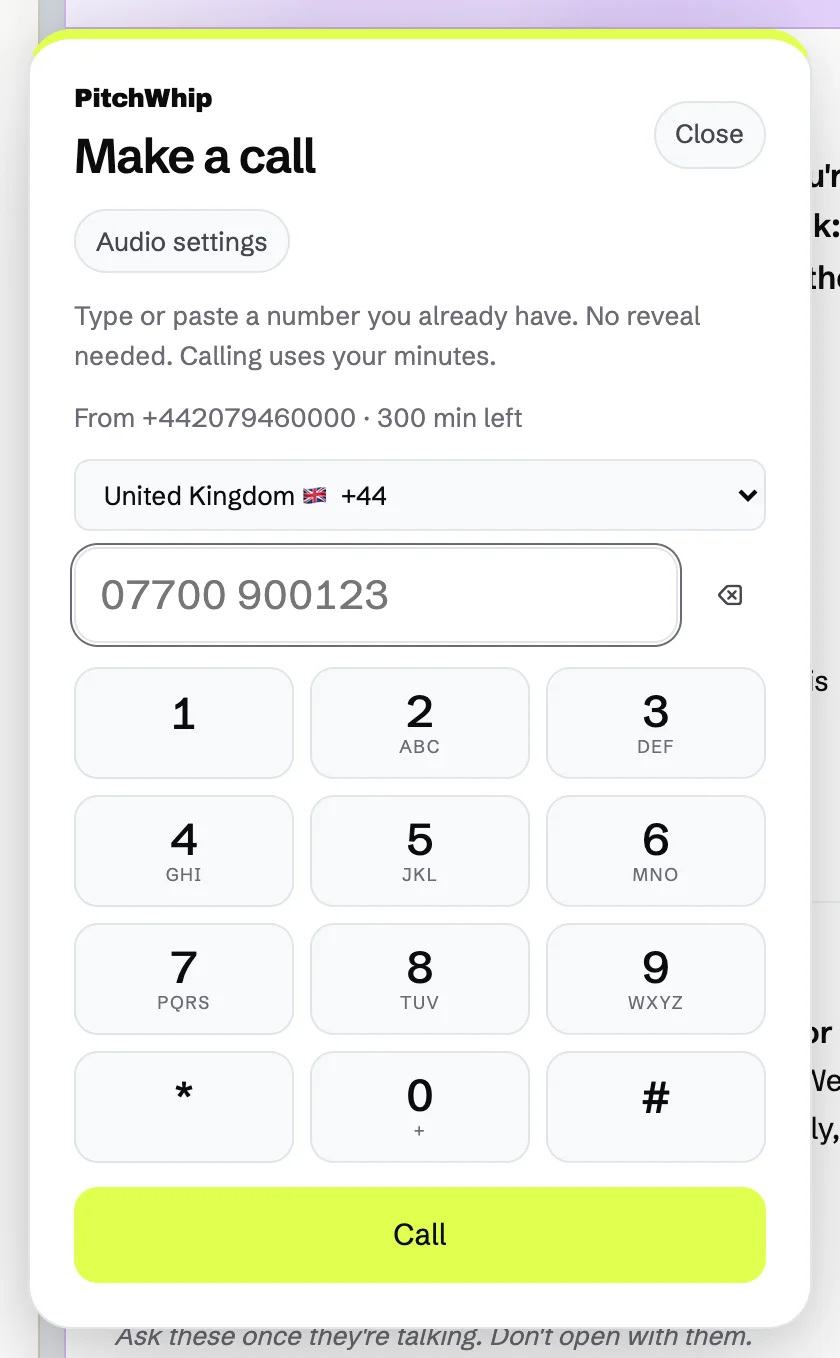
Make a call: the country, the number, the keypad and Call. Click the picture to see it full size. Step 5: Log what happened
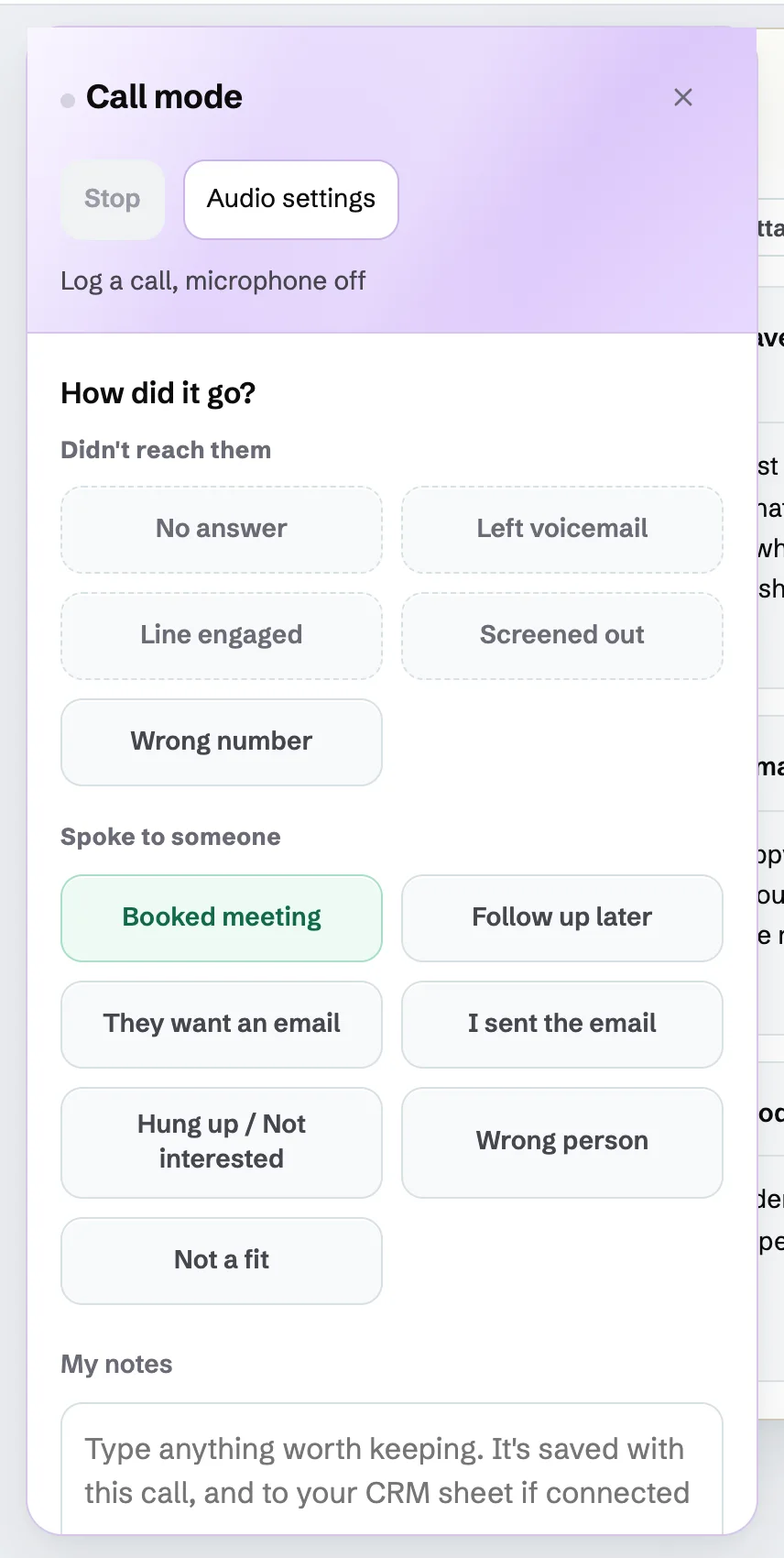
When the call ends, How did it go? asks for the outcome: No answer, Left voicemail, Line engaged, Screened out or Wrong number if you didn't reach them; Booked meeting, Follow up later, They want an email, I sent the email, Hung up / Not interested, Wrong person or Not a fit if you did. One press logs it.
Called on your own phone? Open More and choose Log call to get the same buttons.
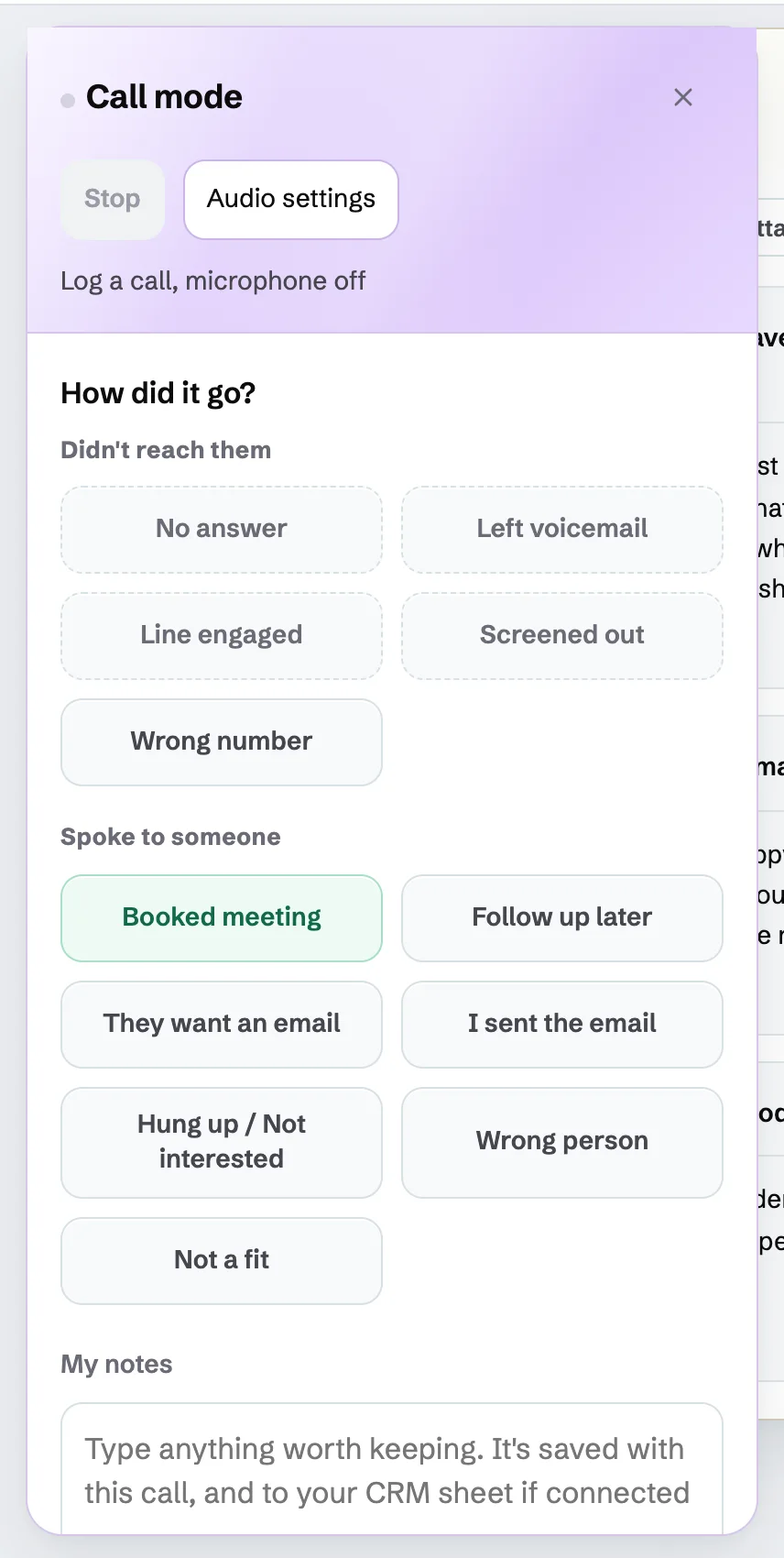
How did it go?: the outcome buttons after a call. Click the picture to see it full size. What you should see: "Saved to your call history". The call appears under Calls in the panel and the dashboard.
Step 6: Set a callback
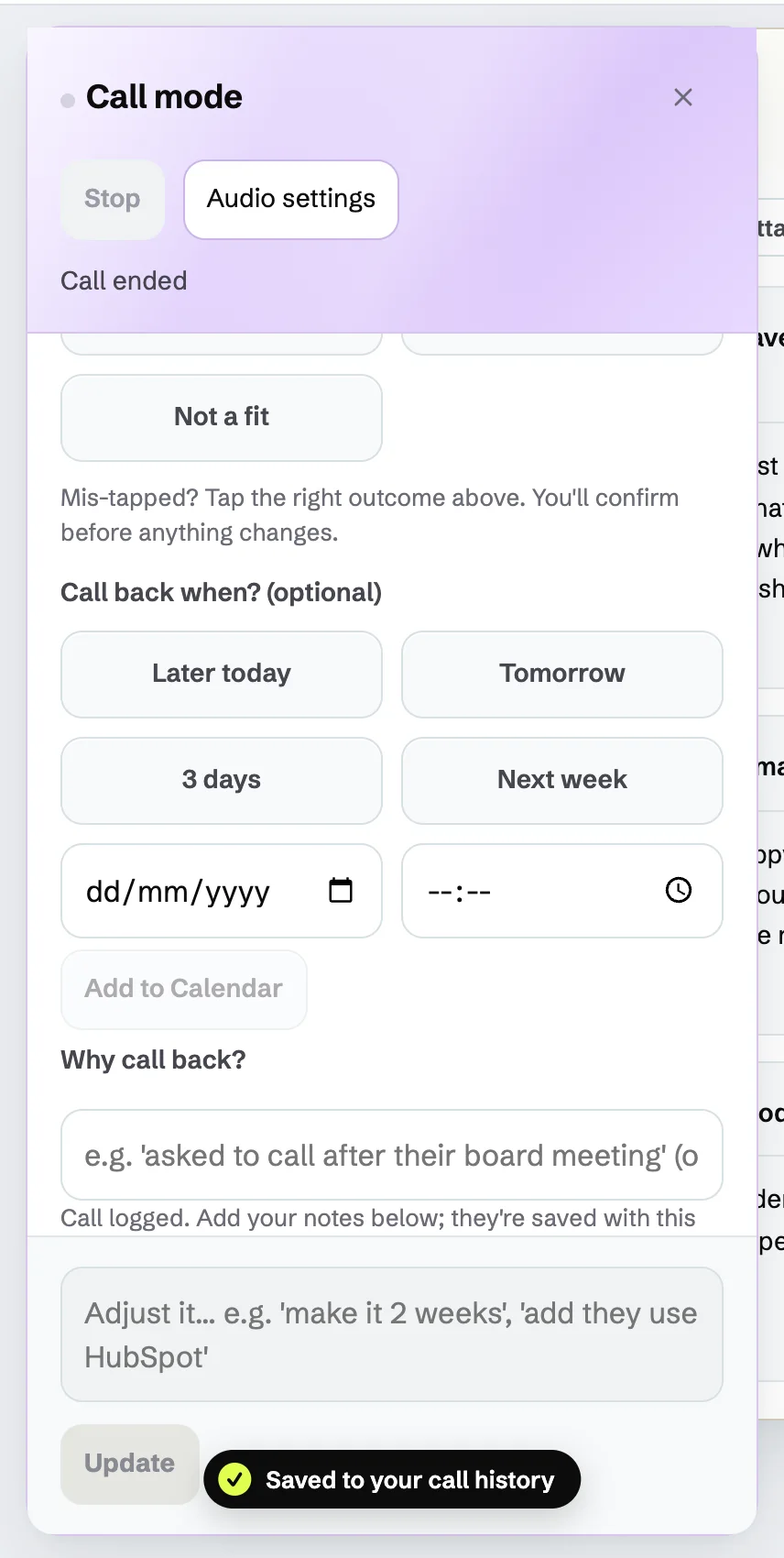
Pick Follow up later and choose when under Call back when?: Later today, Tomorrow, 3 days, Next week, or a date and time. Add a line under Why call back? so you remember.
The callback comes back in Who's next? when it is due.
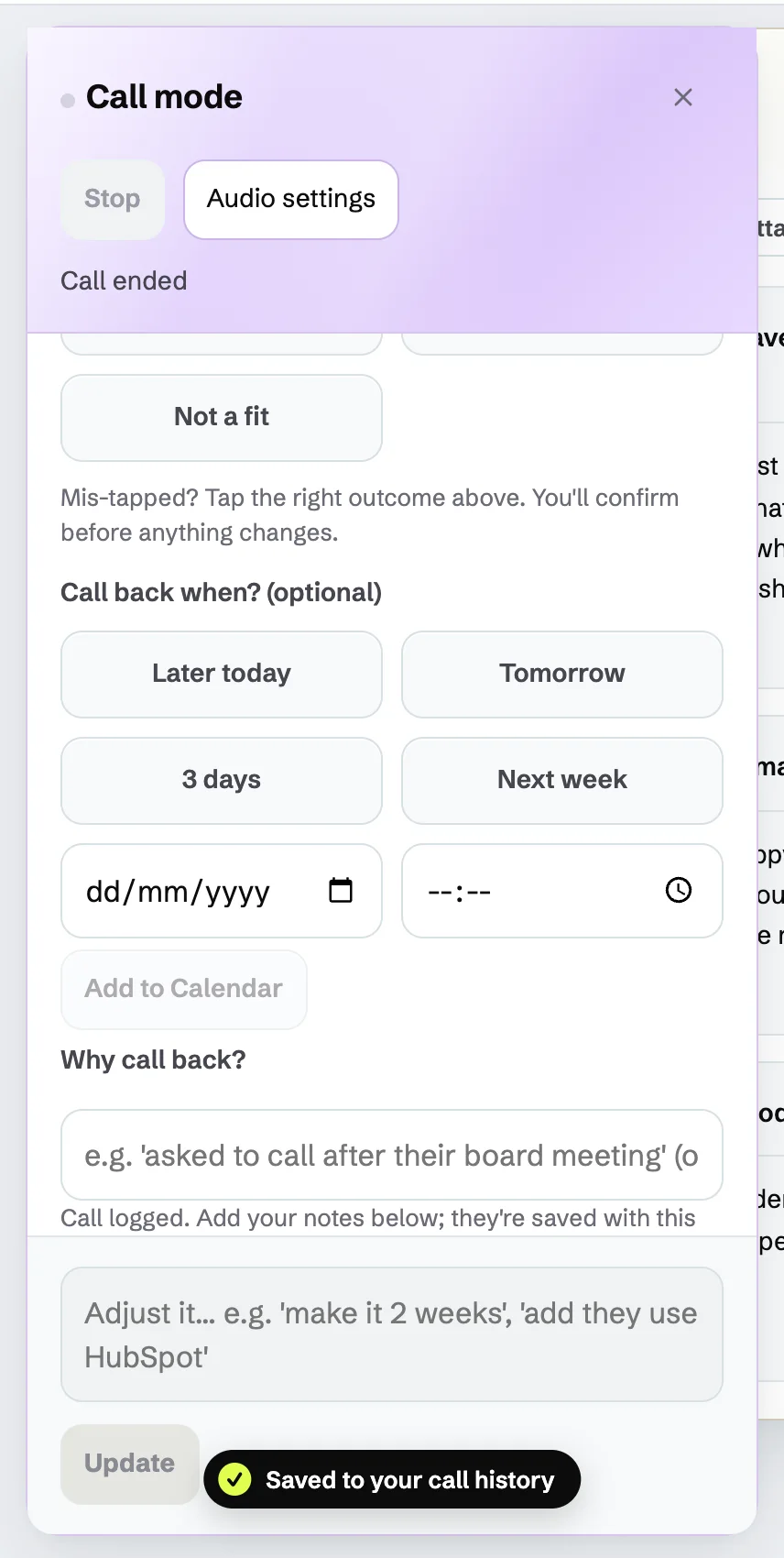
Follow up later: Call back when? and Why call back? Click the picture to see it full size.
Common problems
- Call isn't offered on a revealed number.
- Calling from the computer needs a paid plan, calling minutes and the calling notice accepted by your admin. You can always press Copy and use your own phone.
- They can't hear me.
- Open Audio settings on the call card, or the Audio tab in Settings, and pick the right microphone. See the settings and audio guide.
- Can I call 999 or 911?
- PitchWhip is not a replacement phone. Emergency calls work only from a PitchWhip number with a registered address. Keep another phone to hand; the full details are in our main guide.
Still stuck? The full guide covers every setting, or write to hello@pitchwhip.com and a person replies within a working day.