Connect your CRM and your mailbox
HubSpot or Salesforce from the dashboard, Google Sheets from the extension, and Gmail or Microsoft 365 for sending.
CRM sync and sending are part of a paid plan.
Step 1: Open Integrations in the dashboard
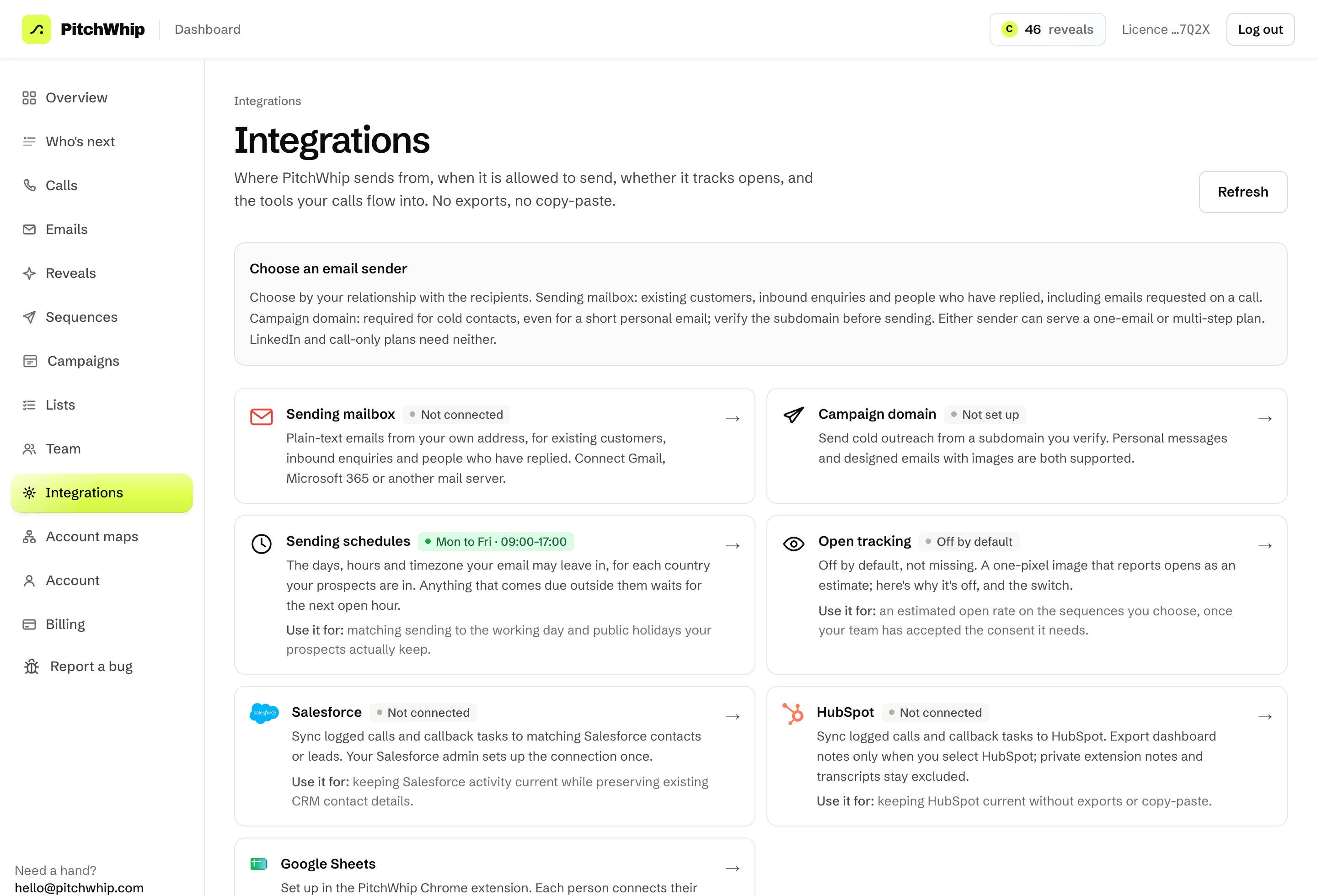
In the dashboard, open Integrations. Each tile says whether it is connected. Click a tile to set it up.
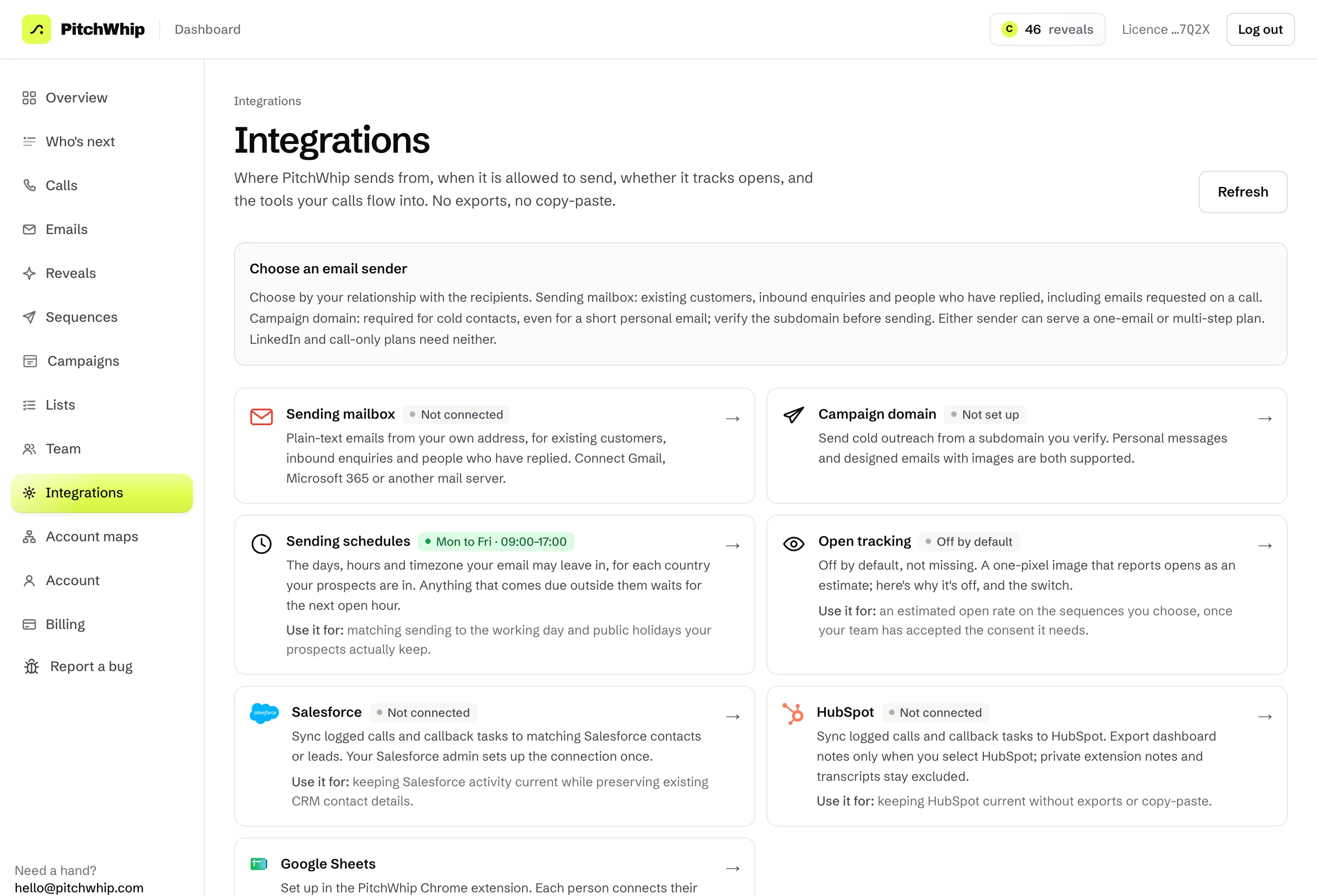
Integrations: sending mailbox, campaign domain, sending schedules, open tracking, Salesforce, HubSpot and Google Sheets. Click the picture to see it full size. Step 2: Connect HubSpot
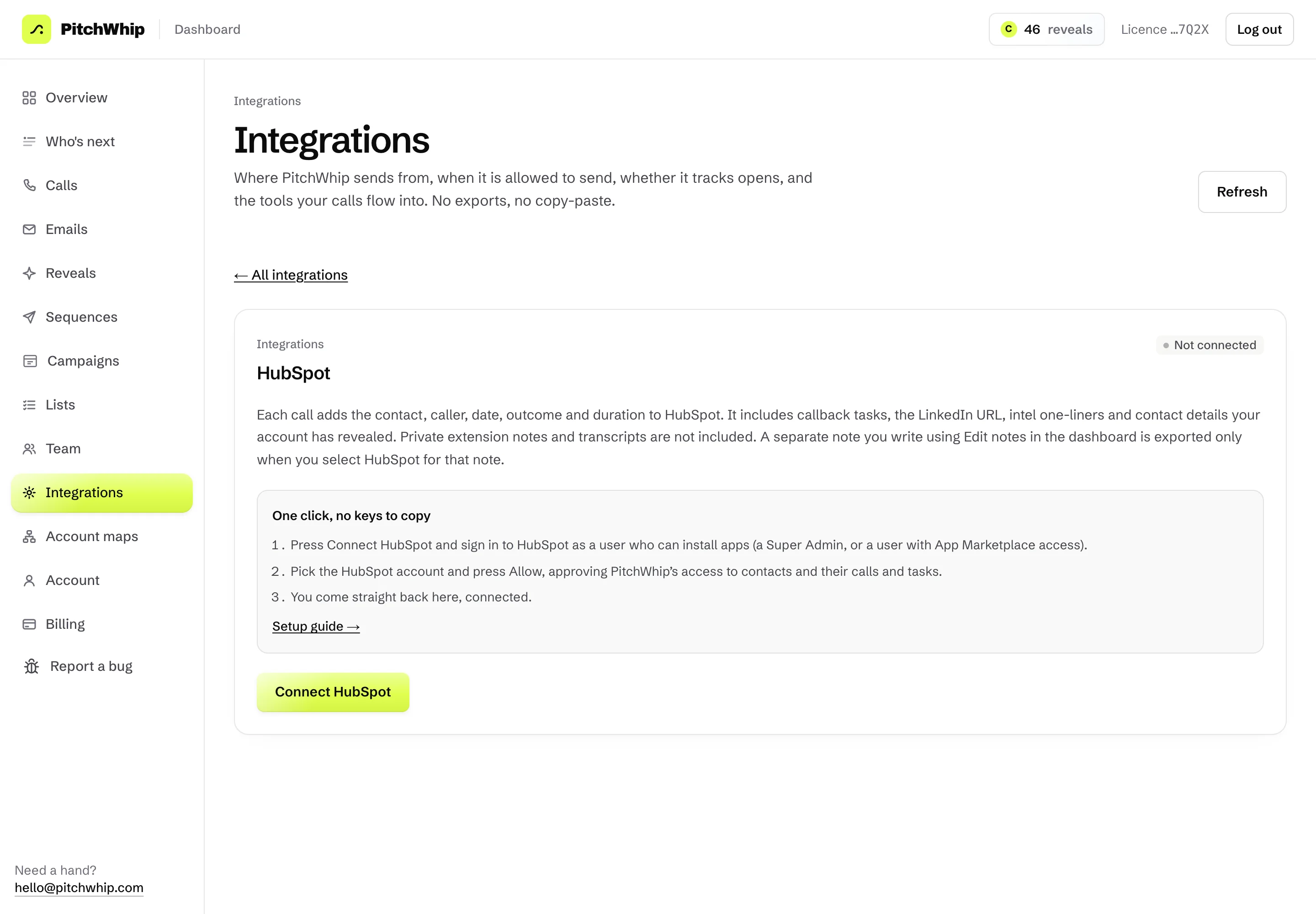
Click HubSpot, then Connect HubSpot. Sign in to HubSpot as a Super Admin (or a user who can install apps), pick the account and press Allow. That's it: no keys to copy.
Each call then goes to HubSpot with its outcome and notes, and callbacks become HubSpot tasks. Your account owner or admin connects it once for the whole team.
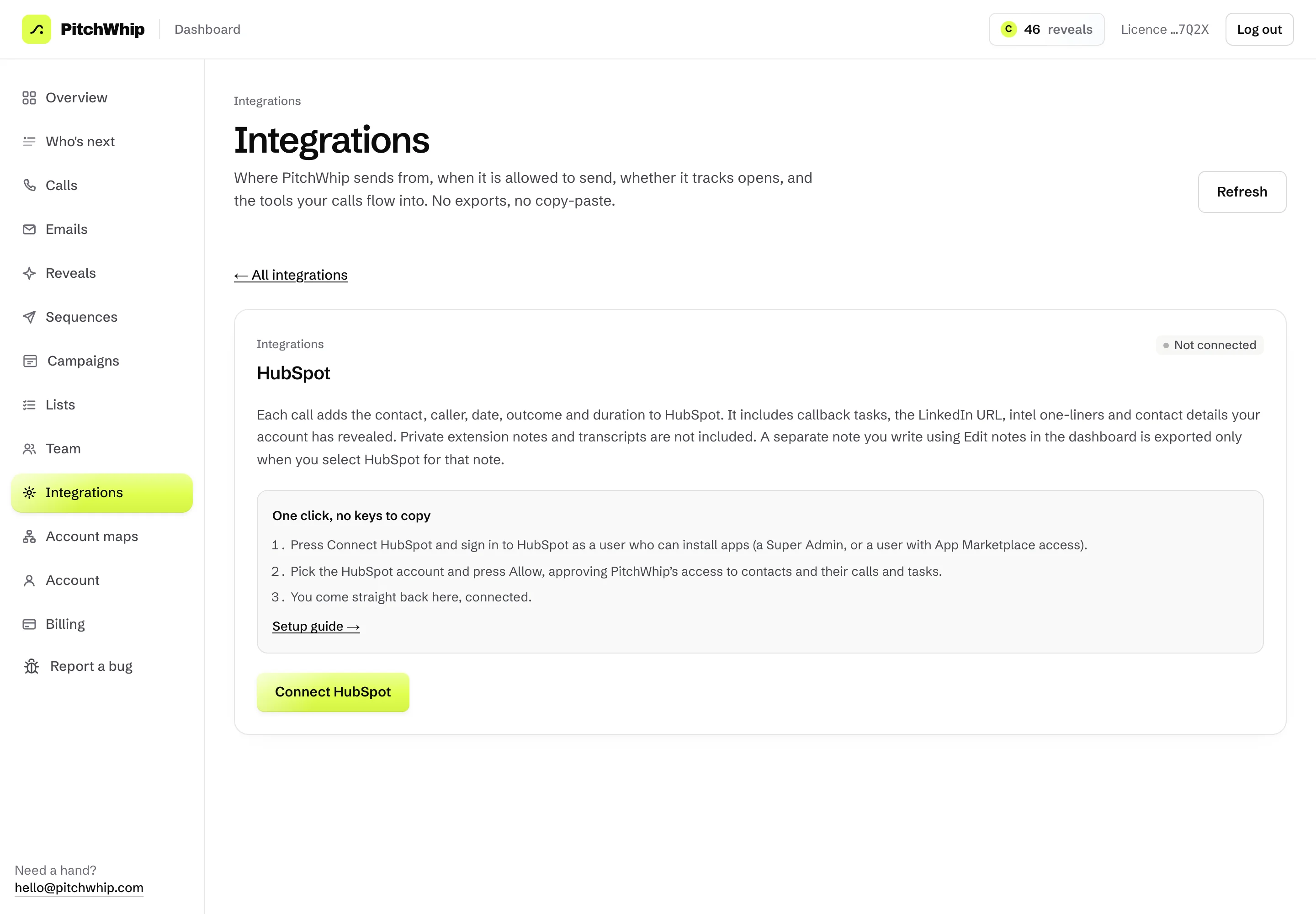
The HubSpot page: one click, no keys to copy, then Connect HubSpot. Click the picture to see it full size. Step 3: Connect Salesforce
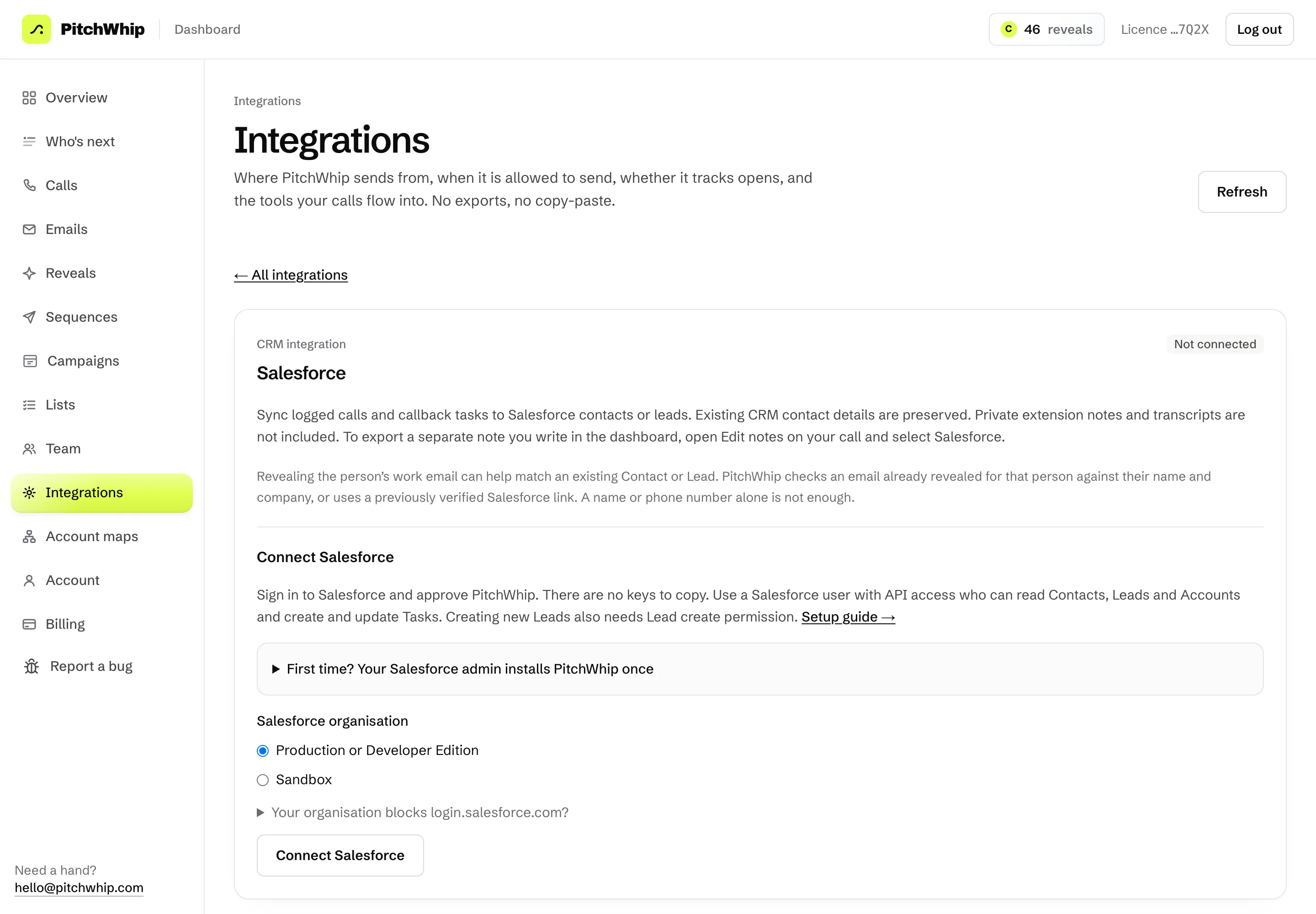
Click Salesforce, choose Production or Developer Edition or Sandbox, and press Connect Salesforce. Sign in to Salesforce and approve PitchWhip. The first time, your Salesforce admin installs PitchWhip once.
Logged calls and callback tasks then sync to matching Salesforce contacts or leads. Existing CRM contact details are kept.
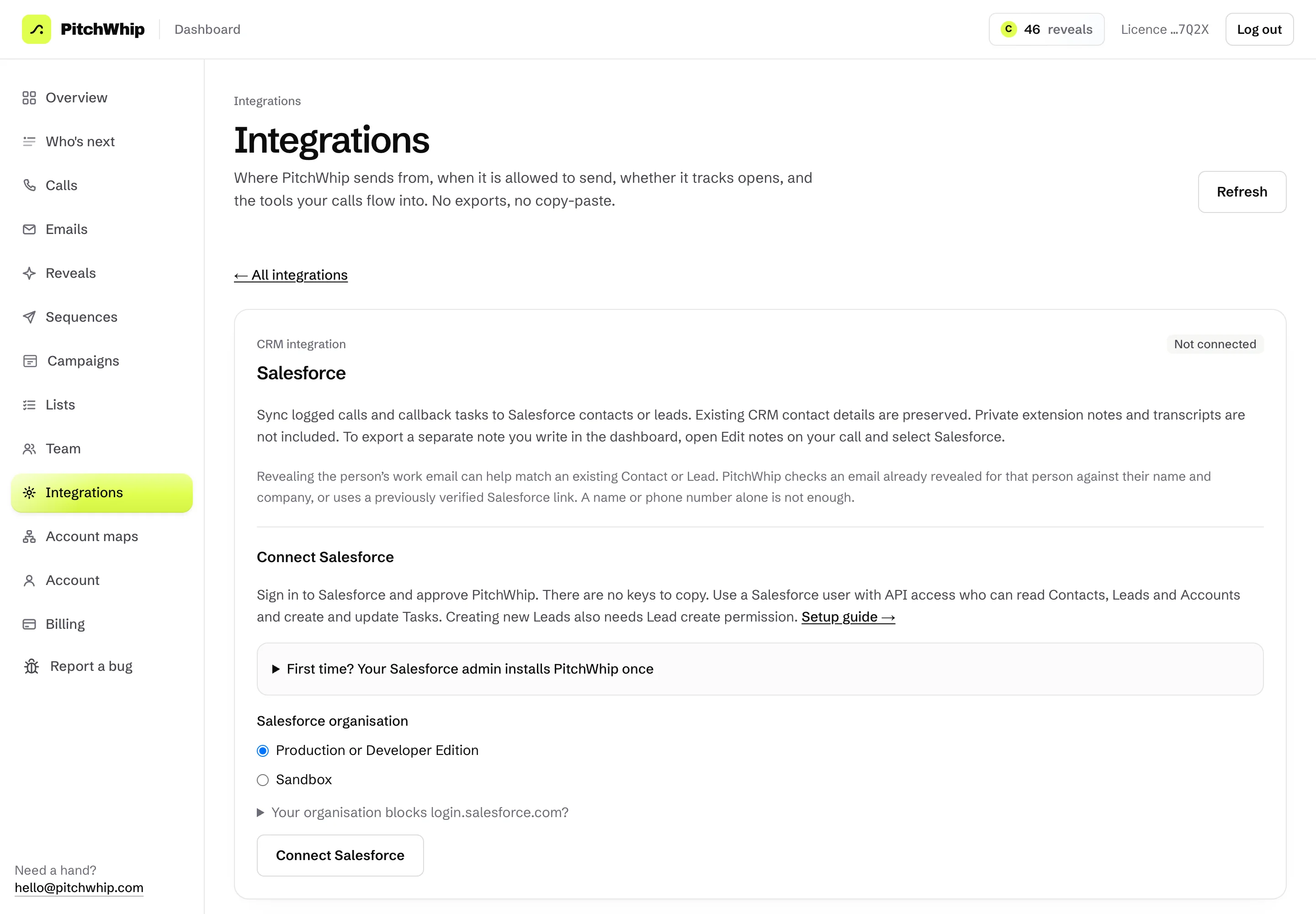
The Salesforce page: pick your organisation type and Connect Salesforce. Click the picture to see it full size. Step 4: Connect your mailbox for sending
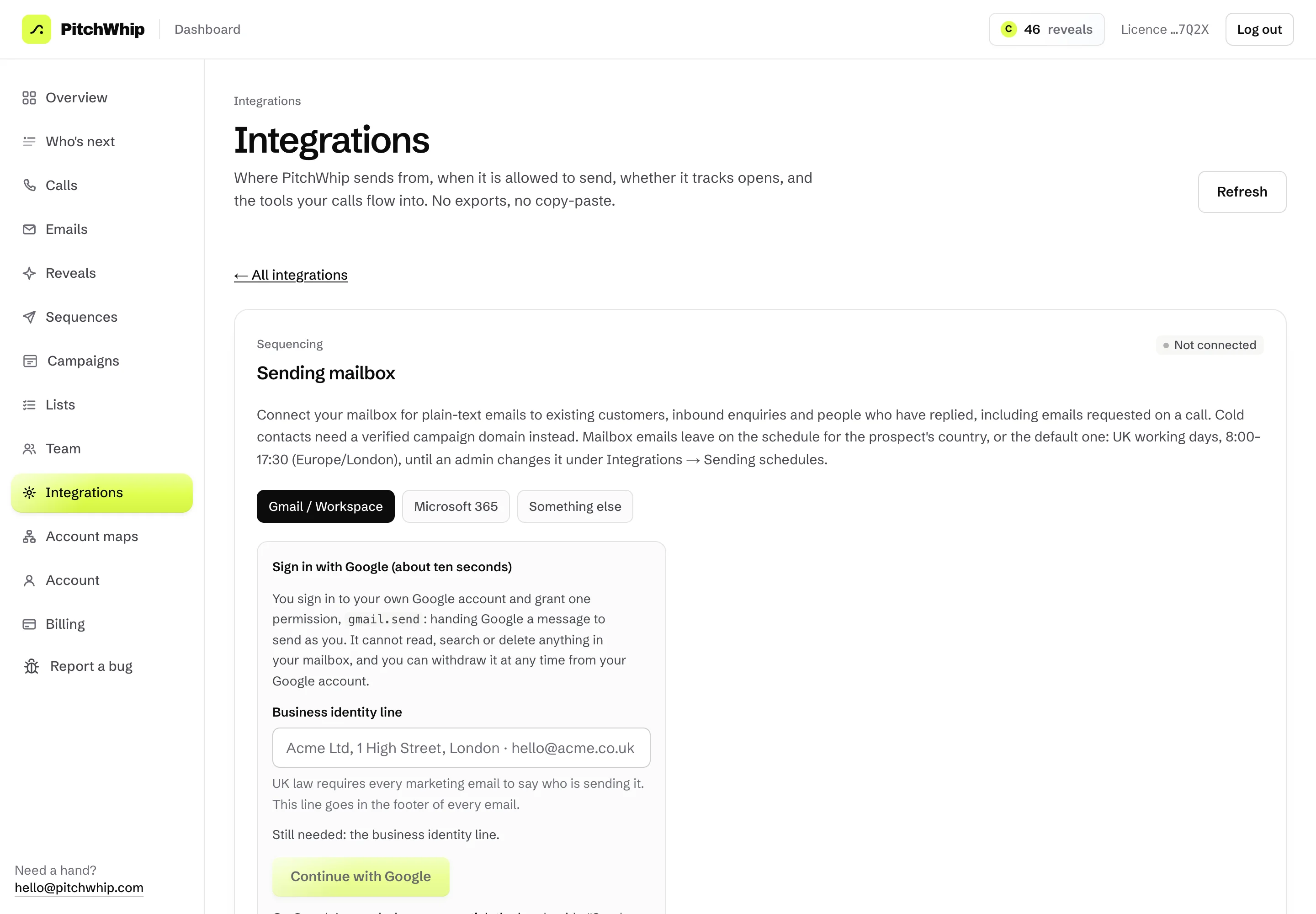
Click Sending mailbox and choose Gmail / Workspace, Microsoft 365 or Something else. For Gmail, fill in your Business identity line and press Continue with Google; PitchWhip can only send as you, never read your mail.
Use your mailbox for people who know you: customers, enquiries and replies. Cold emails go from a Campaign domain you verify instead.
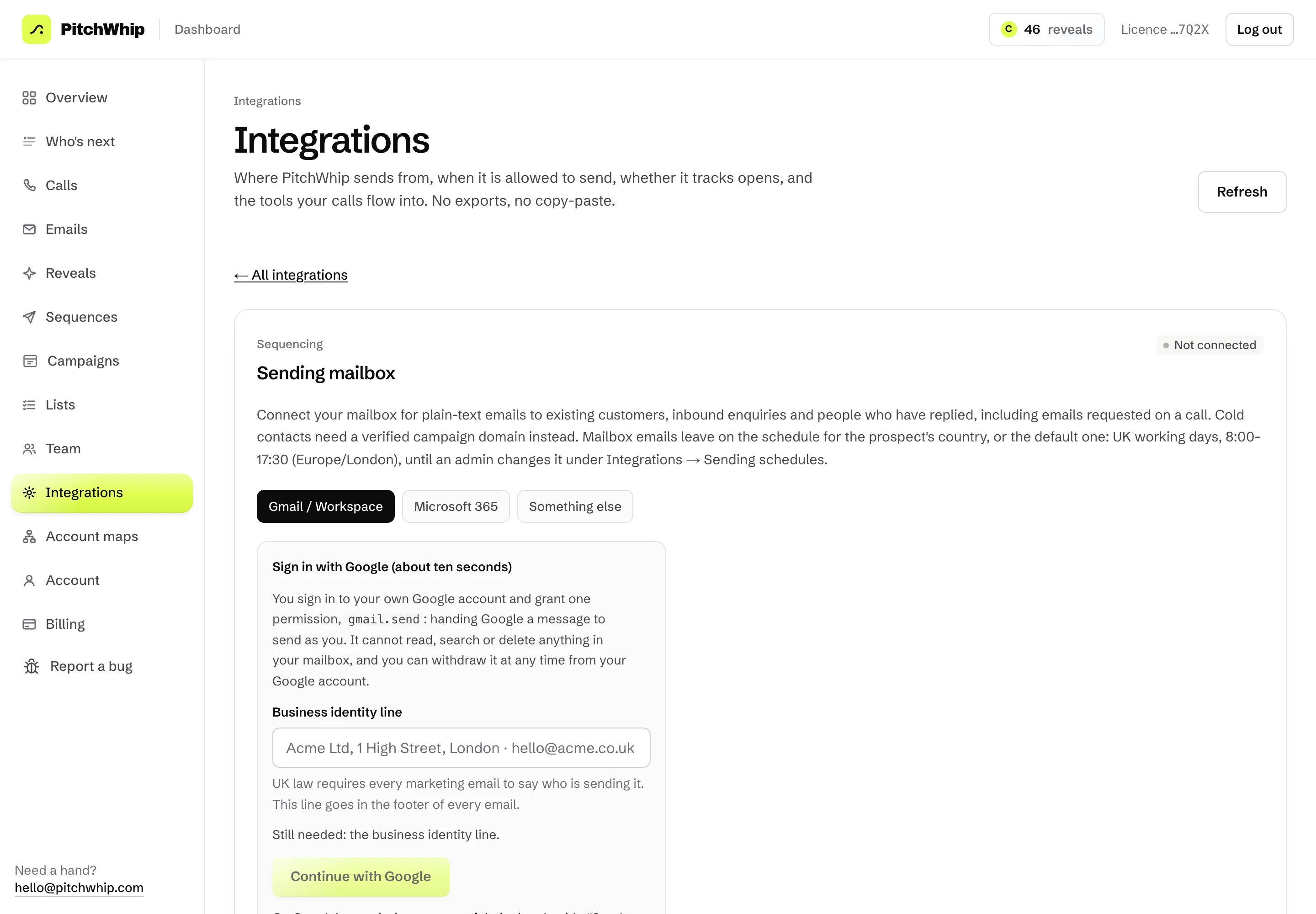
Sending mailbox: Gmail / Workspace, Microsoft 365 or Something else. Click the picture to see it full size. Step 5: Google Sheets and Calendar (in the extension)
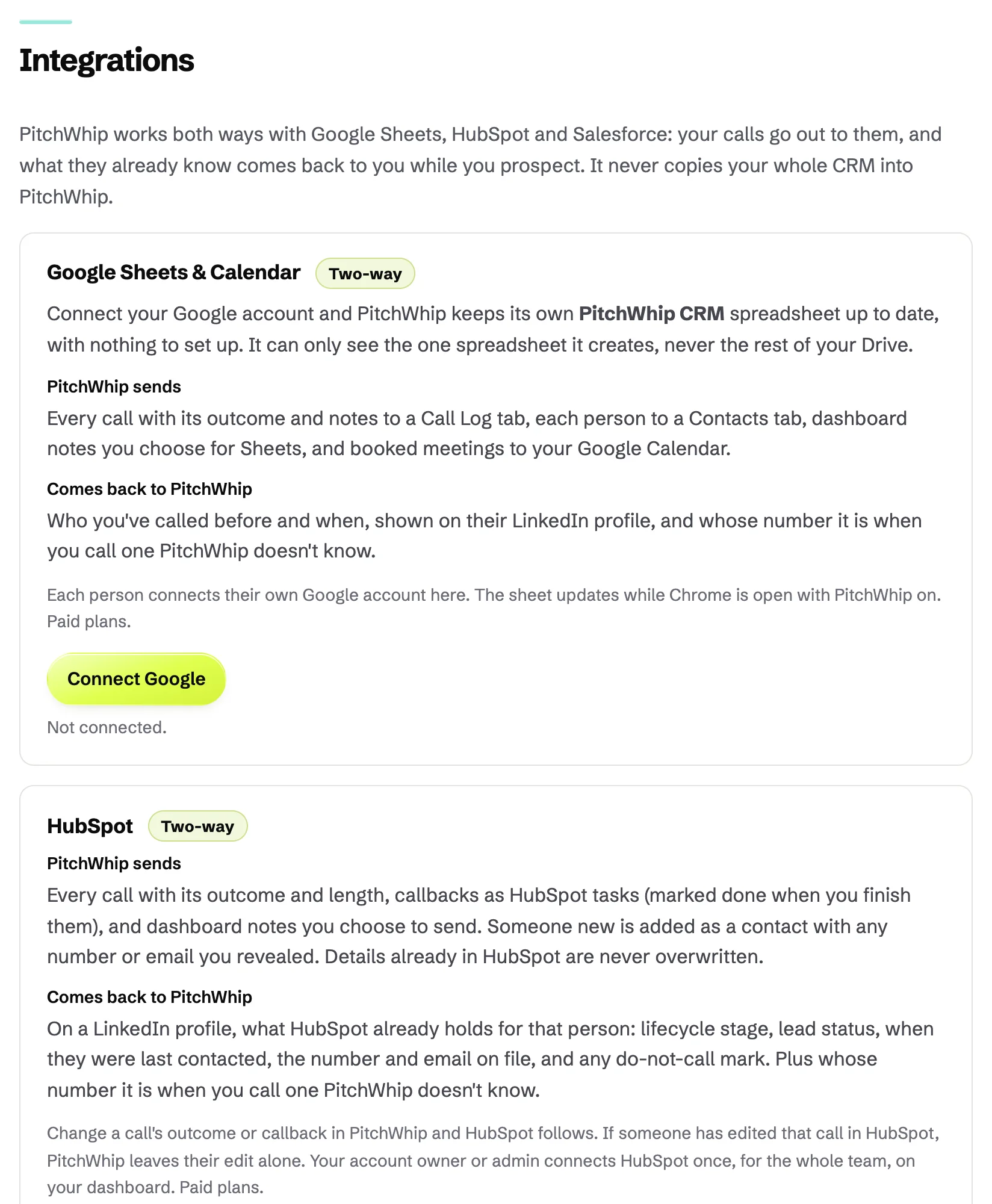
In the extension's Settings, under Integrations, press Connect Google. PitchWhip keeps its own PitchWhip CRM spreadsheet up to date in your Drive and puts booked meetings in your calendar. It can only see the one spreadsheet it creates.
Each person connects their own Google account here.
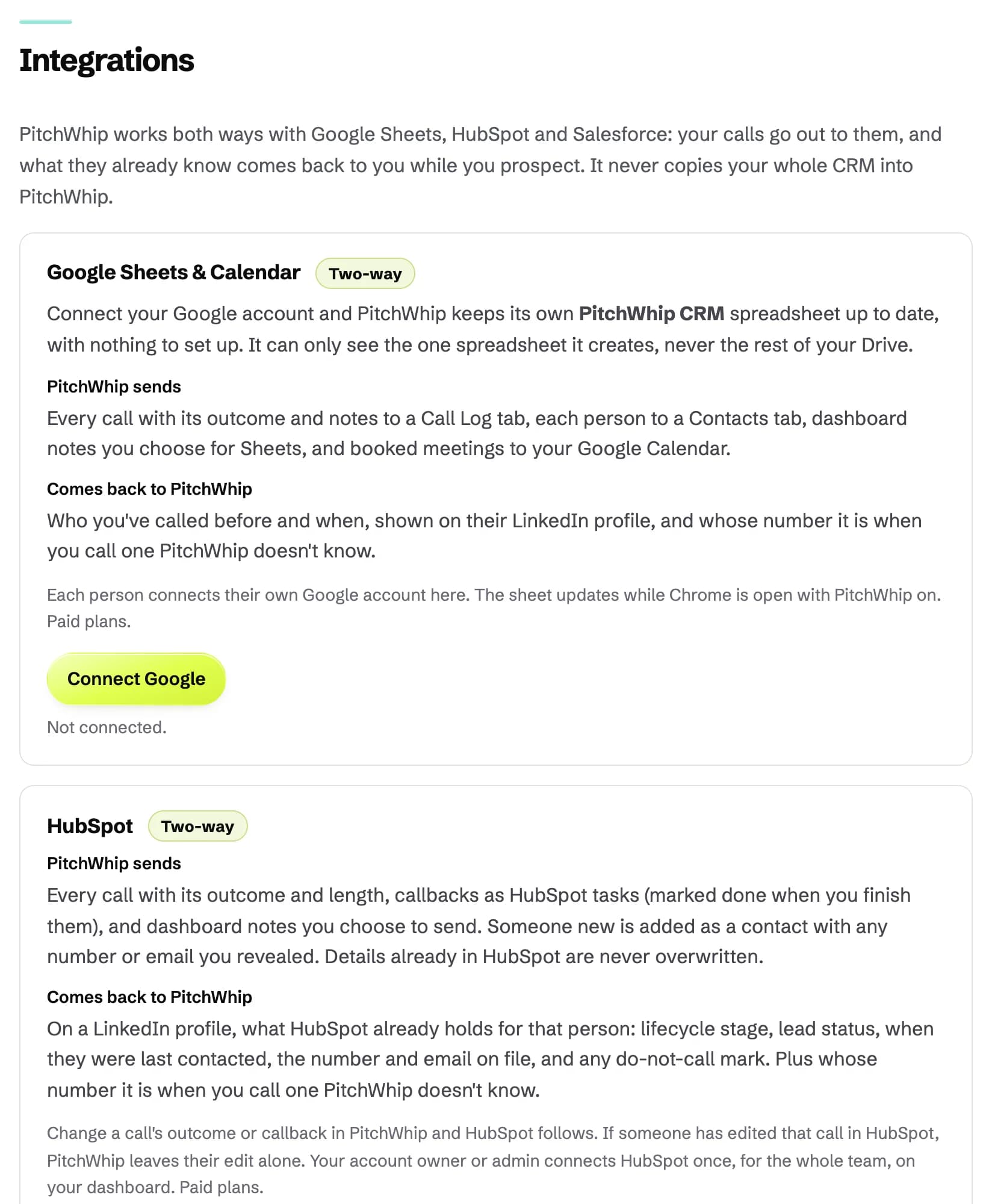
Settings, Integrations: Google Sheets & Calendar with Connect Google, and HubSpot. Click the picture to see it full size.
Common problems
- HubSpot says I don't have permission.
- Sign in as a HubSpot Super Admin, or a user allowed to install apps from the App Marketplace.
- Salesforce blocks the sign-in.
- Your Salesforce admin needs to install PitchWhip once. The page's First time? section has the steps to send them.
- Calls aren't reaching my CRM.
- CRM sync is paid only, and trials write nothing. Check the tile in Integrations: an error there says what to fix.
Still stuck? The full guide covers every setting, or write to hello@pitchwhip.com and a person replies within a working day.