Account maps: map a company and find similar ones
See who works at an account and how they connect, map a whole company, find similar companies and get a report.
Account maps is a $49 a month add-on for paid plans, with 10 new accounts a month. Map a whole company has its own monthly allowance of people, shown on its page.
Step 1: Open Account maps
In the dashboard, open Account maps. Your accounts are listed with their people, decision-makers and follow-ups due, and the meter shows how many new accounts you have used this month.
+ Add account uploads a list of people at a company. Map a whole company finds the people for you. Similar accounts finds companies like the ones you work.
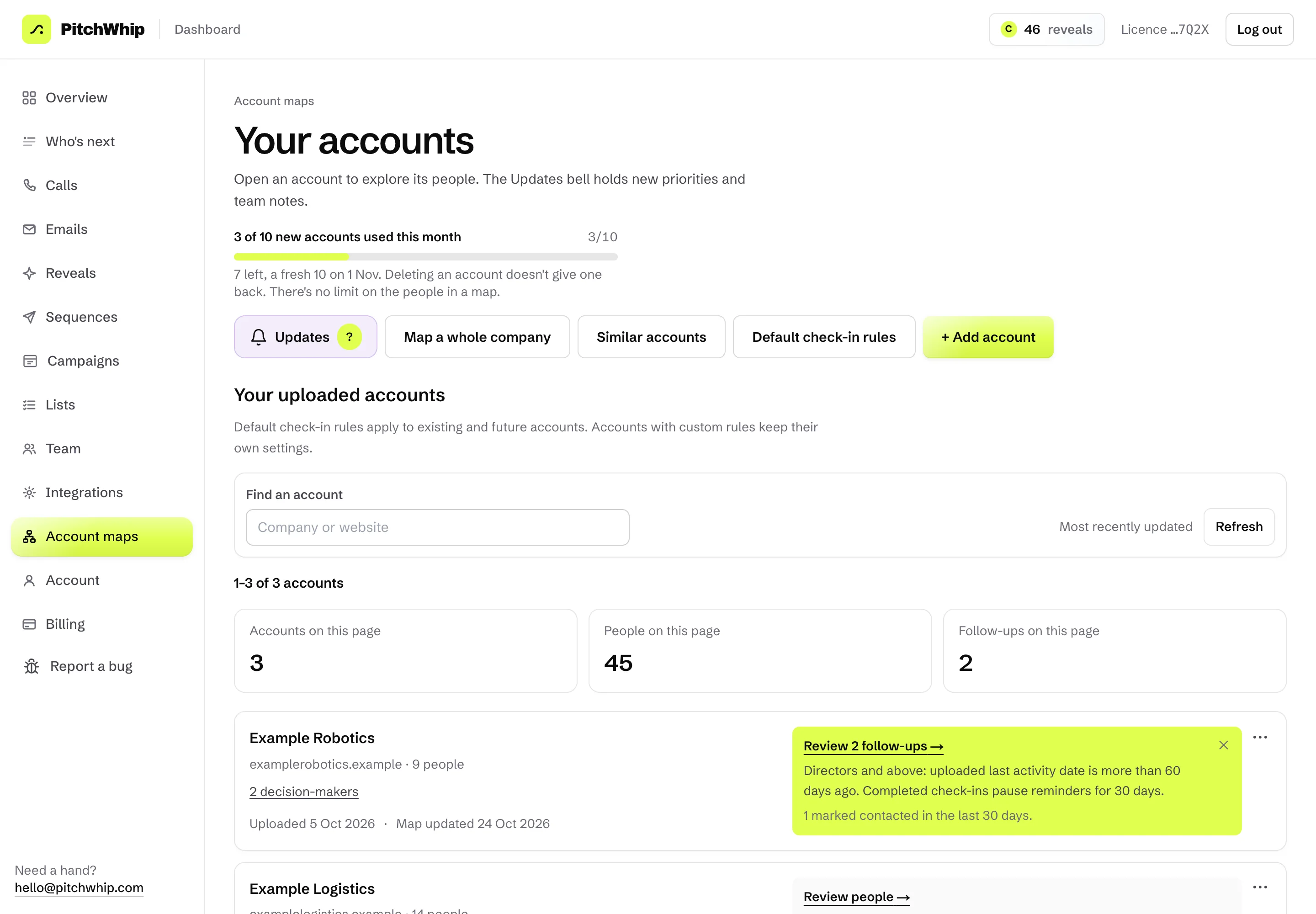
Your accounts, with Map a whole company, Similar accounts and Add account. Click the picture to see it full size. Step 2: Map a whole company
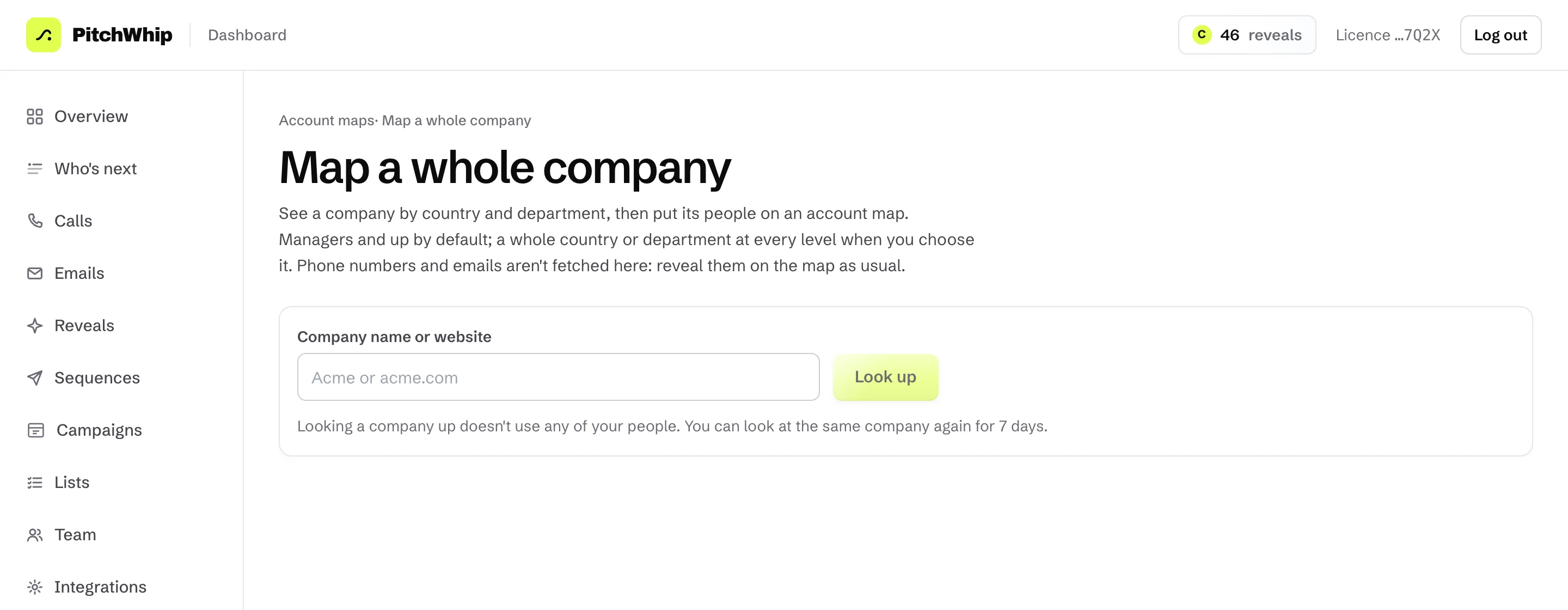
Press Map a whole company, type a Company name or website and press Look up. Looking a company up doesn't use any of your people; you can look at the same company again for 7 days.
Then choose the people to put on the map: managers and up by default, a whole country or department, or every level. Phone numbers and emails aren't fetched here; reveal them on the map as usual.
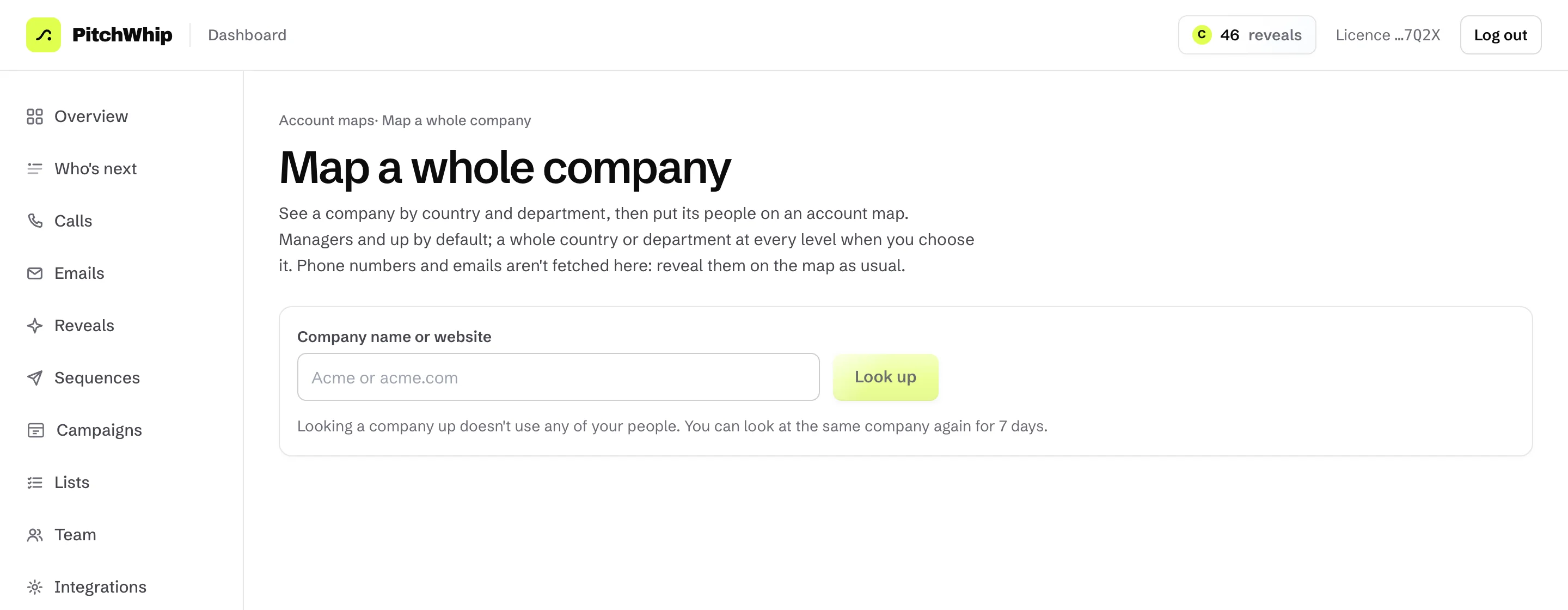
Map a whole company: a company name or website and Look up. Click the picture to see it full size. Step 3: Work the map
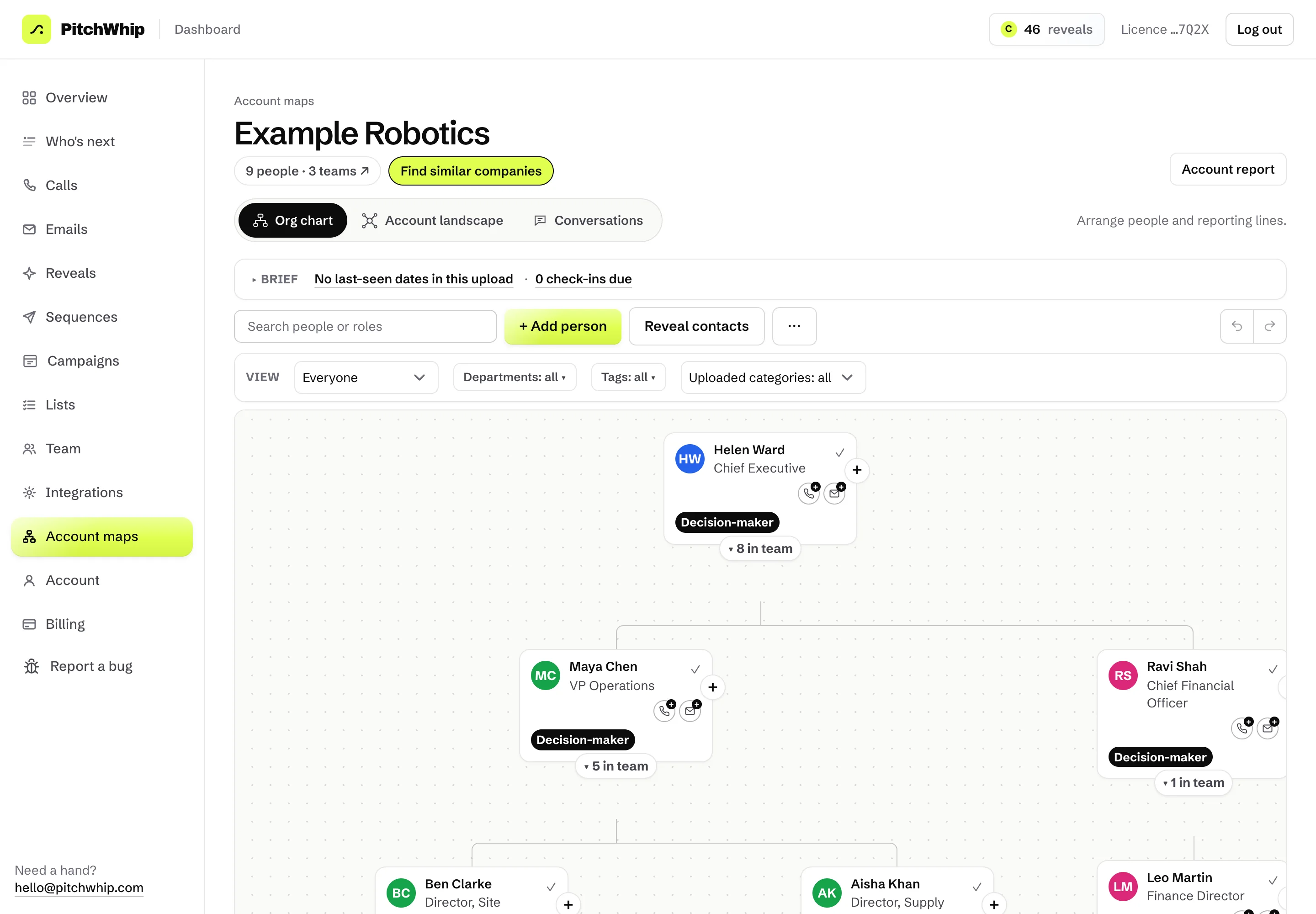
The Org chart shows who reports to whom, with decision-makers marked. Click a person to see their details and notes, drag them to fix the chart, or press + Add person. Reveal contacts reveals numbers or emails for people on the map.
Find similar companies finds lookalike accounts, and Account report gives you a summary of the account to share.
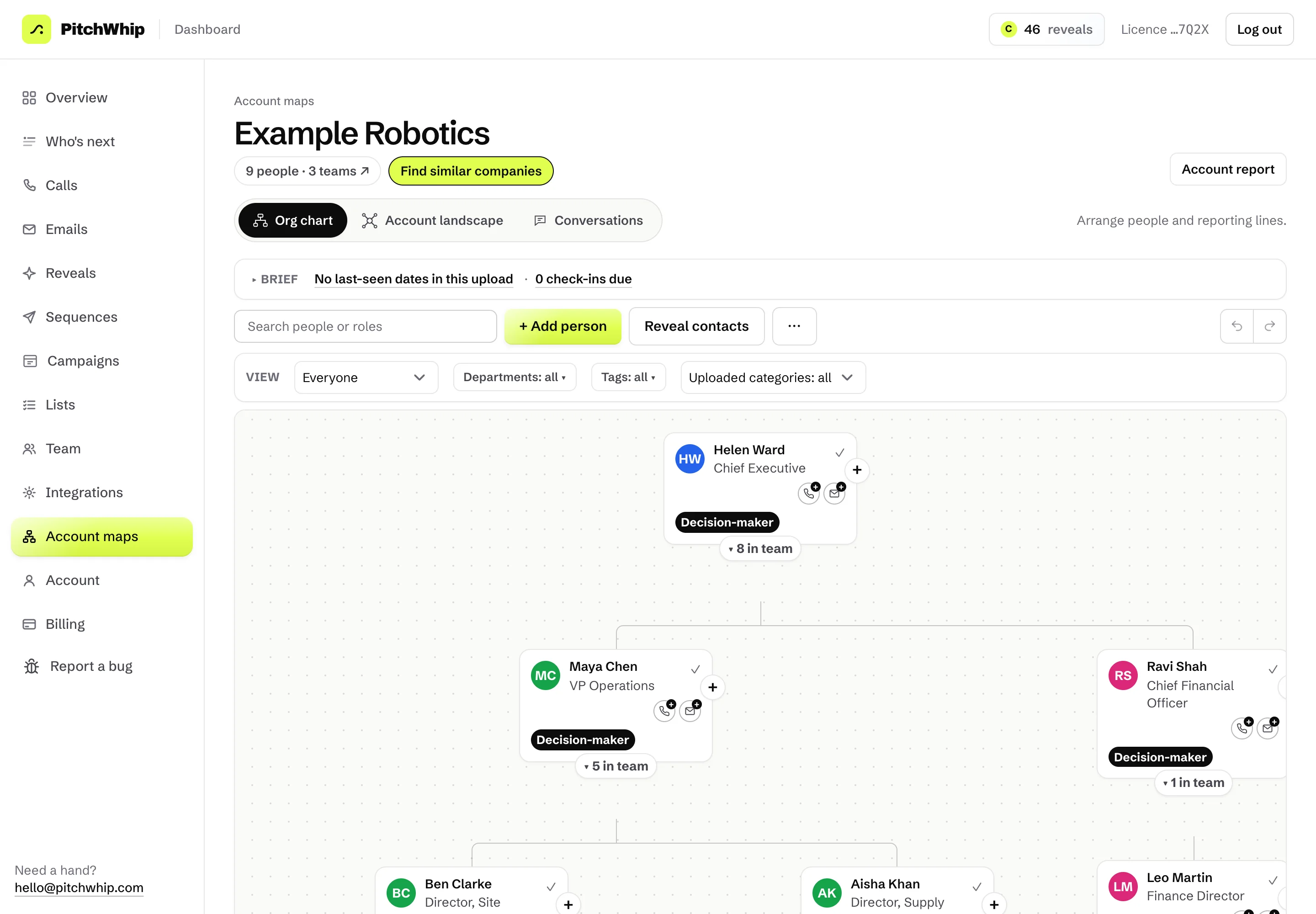
An account map: the org chart, Find similar companies and Account report. Click the picture to see it full size.
Common problems
- I don't see Account maps in the dashboard.
- It's an add-on for paid plans. Choose a plan first, then add Account maps from Billing.
- The meter says I've used my 10 accounts.
- New accounts reset each month, and deleting an account doesn't give one back. There's no limit on the people in a map.
- Someone is in the wrong place on the chart.
- Drag their card onto the right manager, or open their card and change who they report to.
Still stuck? The full guide covers every setting, or write to hello@pitchwhip.com and a person replies within a working day.