Settings and audio
Find PitchWhip's Settings, test your microphone and speaker, and set how the panel behaves.
Step 1: Open Settings
Click Chrome's jigsaw-piece button, right-click PitchWhip and choose Options. Or, in the panel, open More and choose Settings.
Settings has tabs: Licence, Settings, Audio, Stats, Objections, and Dashboard, which opens the dashboard.
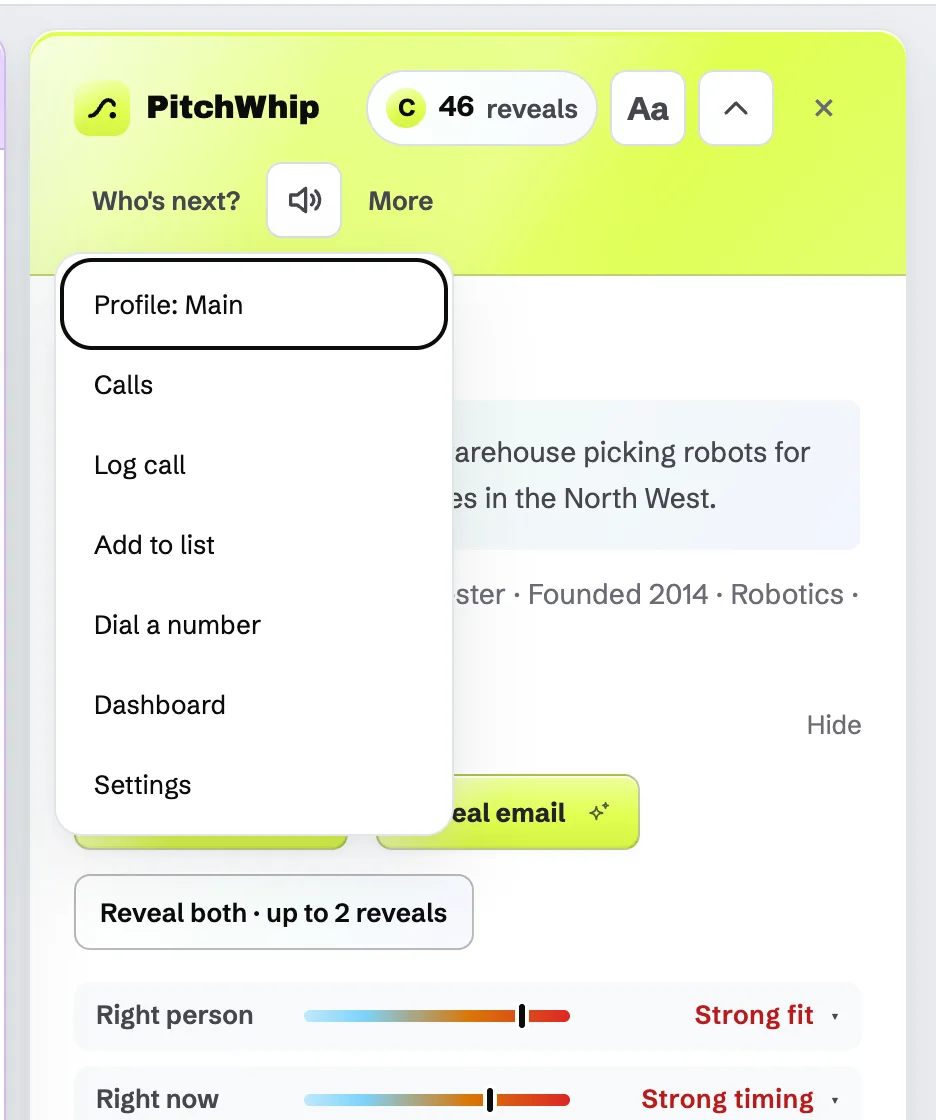
The More menu in the panel: Calls, Log call, Add to list, Dial a number, Dashboard and Settings. Click the picture to see it full size. Step 2: Test your microphone and speaker
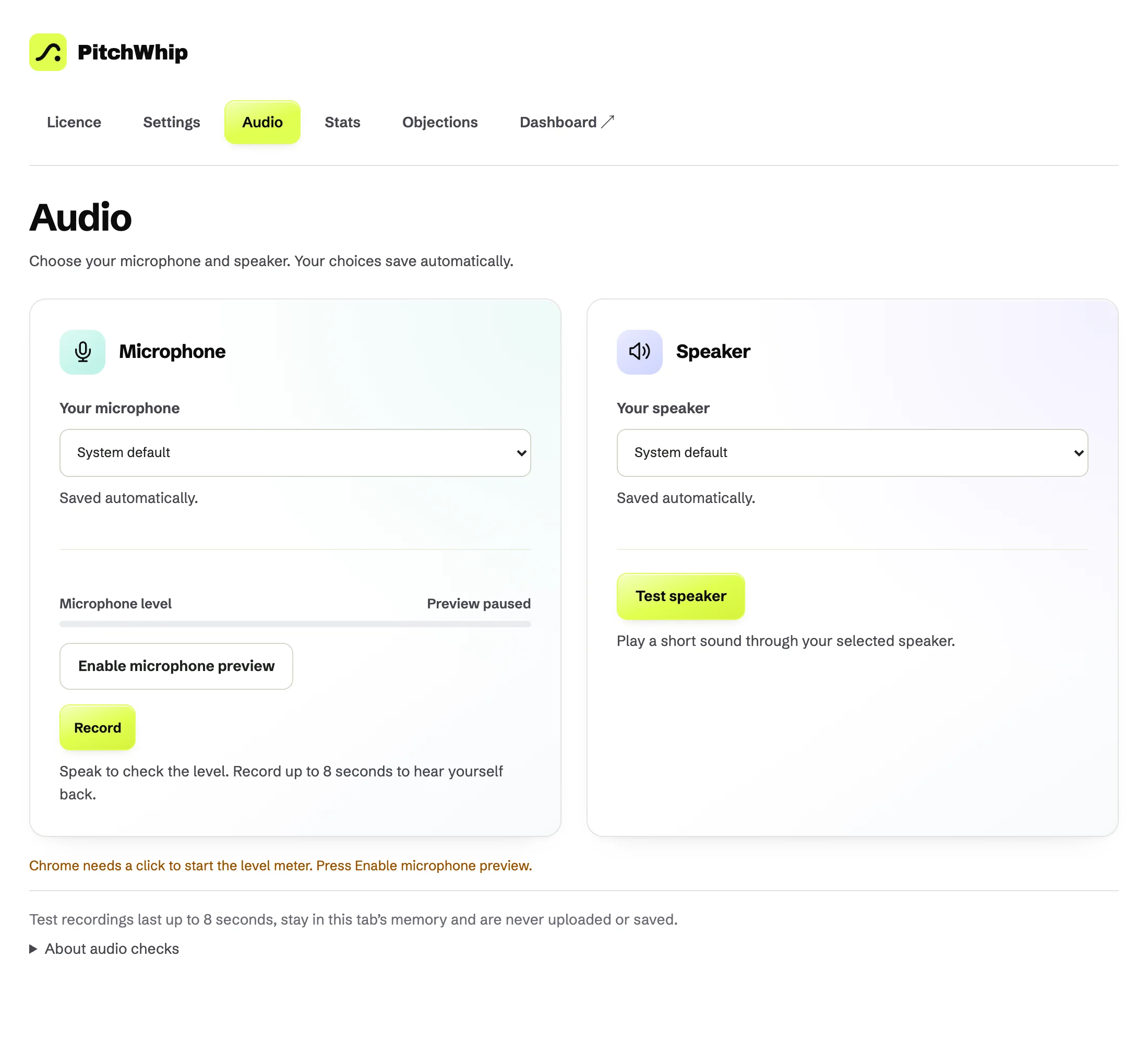
Open the Audio tab. Under Microphone, choose Your microphone, press Enable microphone preview and talk: the level bar moves. Record saves up to 8 seconds so you can hear yourself back.
Under Speaker, choose Your speaker and press Test speaker to play a short sound. Your choices save automatically. Test recordings stay in the tab and are never uploaded.
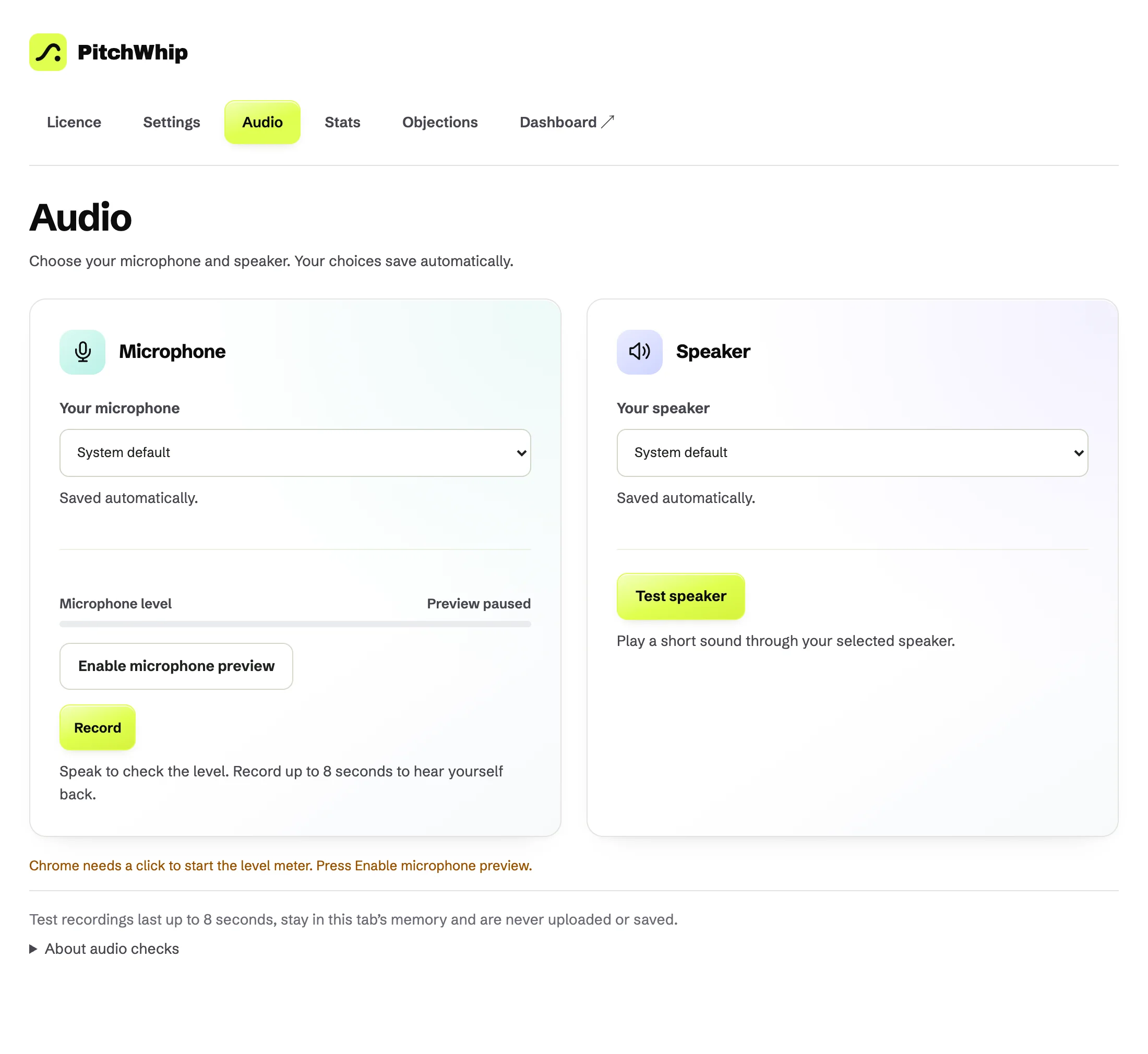
The Audio tab: your microphone with its level and Record, and your speaker with Test speaker. Click the picture to see it full size. Step 3: Choose how the panel behaves
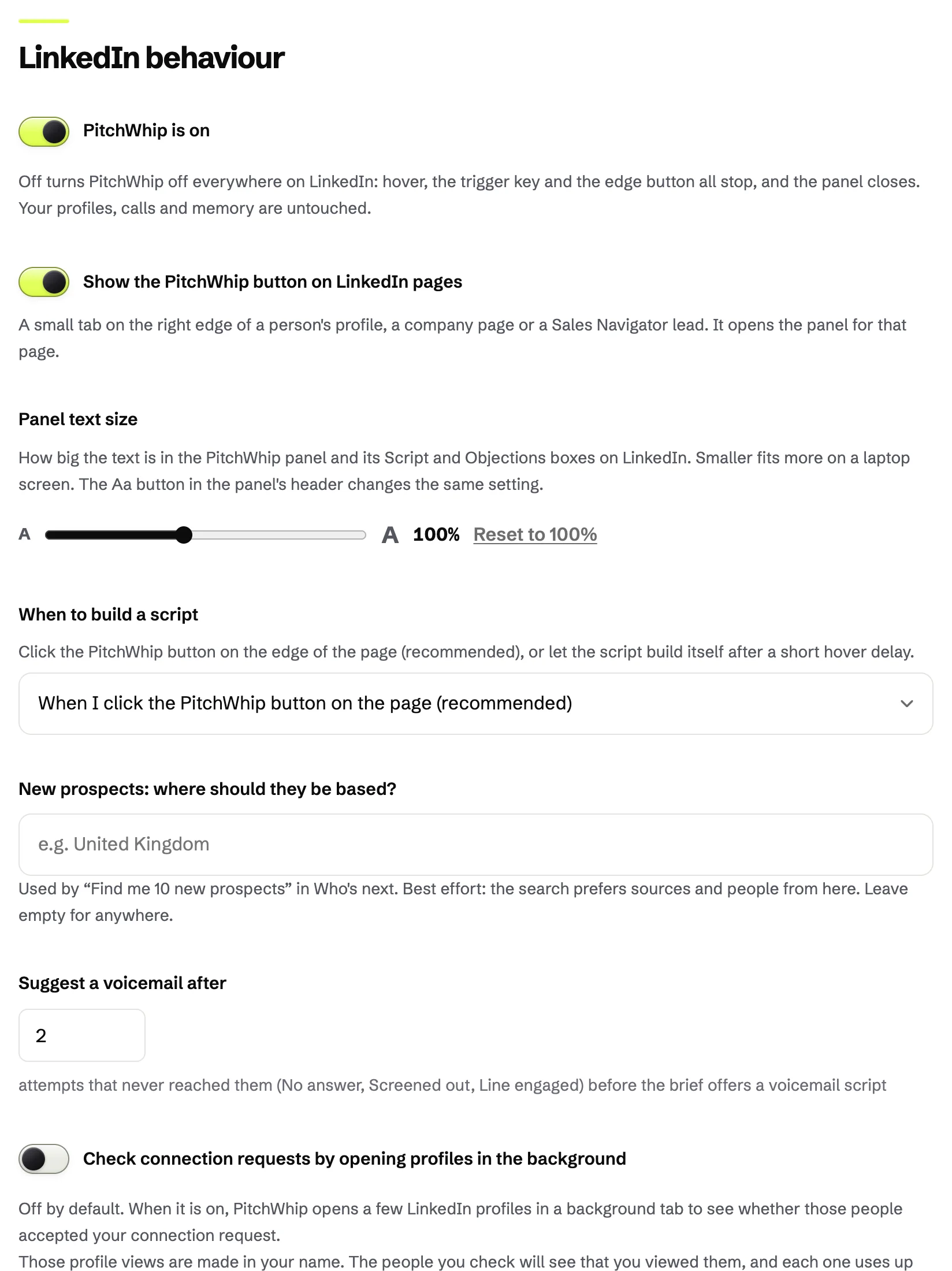
Under LinkedIn behaviour: PitchWhip is on switches it off everywhere; Show the PitchWhip button on LinkedIn pages shows the edge tab; Panel text size makes the panel's text bigger or smaller (the Aa button in the panel does the same); When to build a script chooses between clicking the tab and hovering.
Suggest a voicemail after sets how many unanswered attempts before the brief offers a voicemail script.
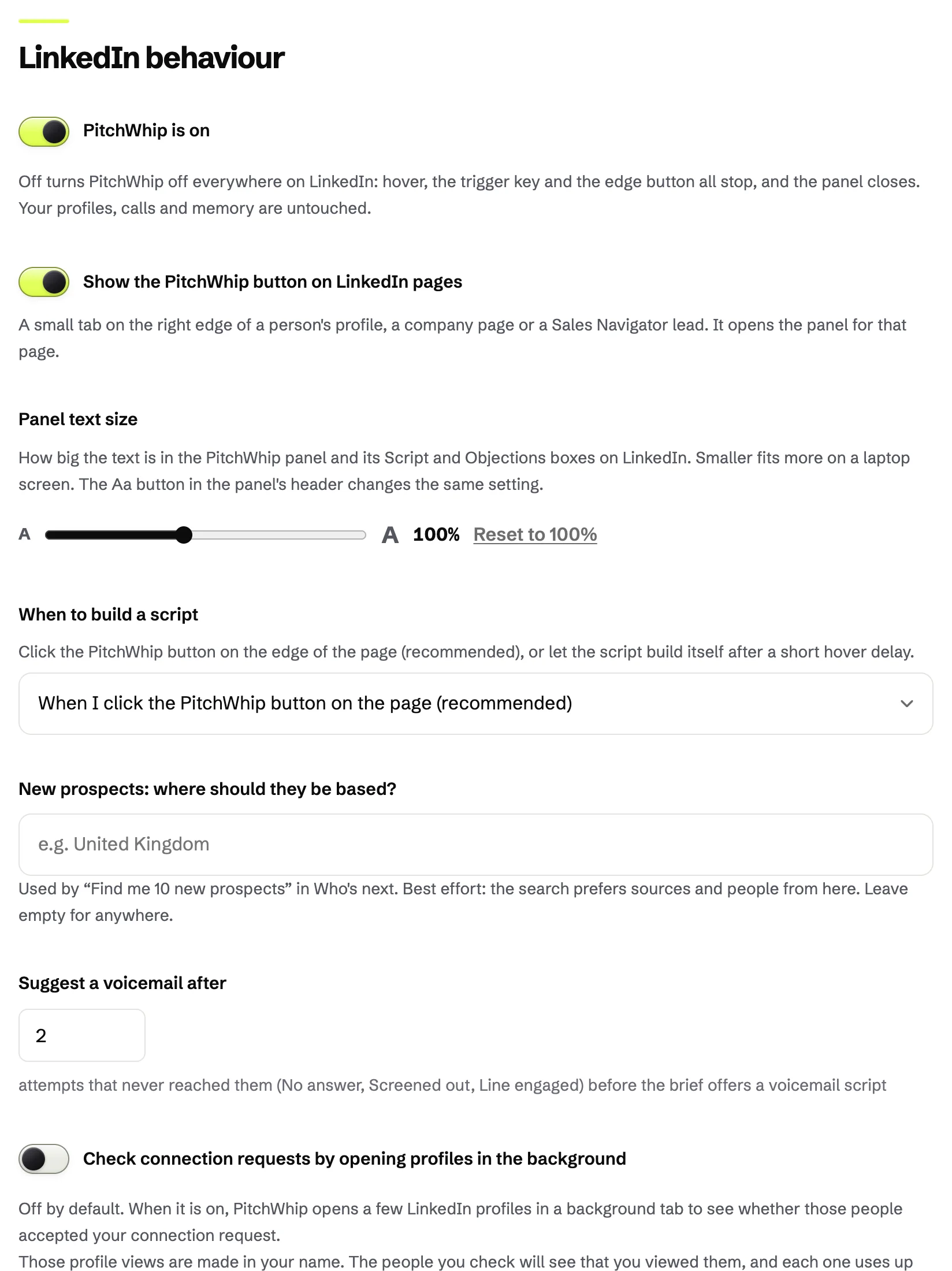
Settings, LinkedIn behaviour: on and off, the edge tab, text size and when to build a script. Click the picture to see it full size.
Common problems
- Chrome says the microphone is blocked.
- Click the icon at the left of the address bar on the Audio page and allow the microphone, then press Enable microphone preview again.
- The wrong headset is used on calls.
- Pick it under Your microphone and Your speaker on the Audio tab; the call card's Audio settings changes it during a call.
- The panel covers the page.
- Make the text smaller with Aa, fold the header with the arrow beside it, or drag the panel's edge to make it narrower.
Still stuck? The full guide covers every setting, or write to hello@pitchwhip.com and a person replies within a working day.