Install and pin PitchWhip
Add the extension to desktop Chrome and keep its button in your toolbar.
Step 1: Add PitchWhip to Chrome
On a computer, open the PitchWhip page on the Chrome Web Store (the Add to Chrome button on pitchwhip.com takes you there) and press Add to Chrome, then Add extension.
PitchWhip works in desktop Chrome. It does not install on a phone or tablet.
PitchWhip
PressAdd to ChromeAdd “PitchWhip”?
Then press Add extension
Illustration: the Add to Chrome button on the Chrome Web Store, then Add extension. What you should see: A PitchWhip tab opens on pitchwhip.com/welcome, and PitchWhip's Settings open in a tab behind it.
Step 2: Pin it to your toolbar
Chrome hides new extensions behind the jigsaw-piece button beside the address bar. Click it, then click the pin beside PitchWhip so its icon stays in your toolbar.
To open PitchWhip's Settings later, click the jigsaw piece, then right-click PitchWhip and choose Options.
Click the jigsaw piece beside the address bar
Click the pin beside PitchWhip
PitchWhip’s icon stays in the toolbar
Extensions
PitchWhipIllustration: Chrome's jigsaw-piece menu with the pin beside PitchWhip. What you should see: The PitchWhip icon sits beside the address bar.
Step 3: Find the PitchWhip tab on a profile
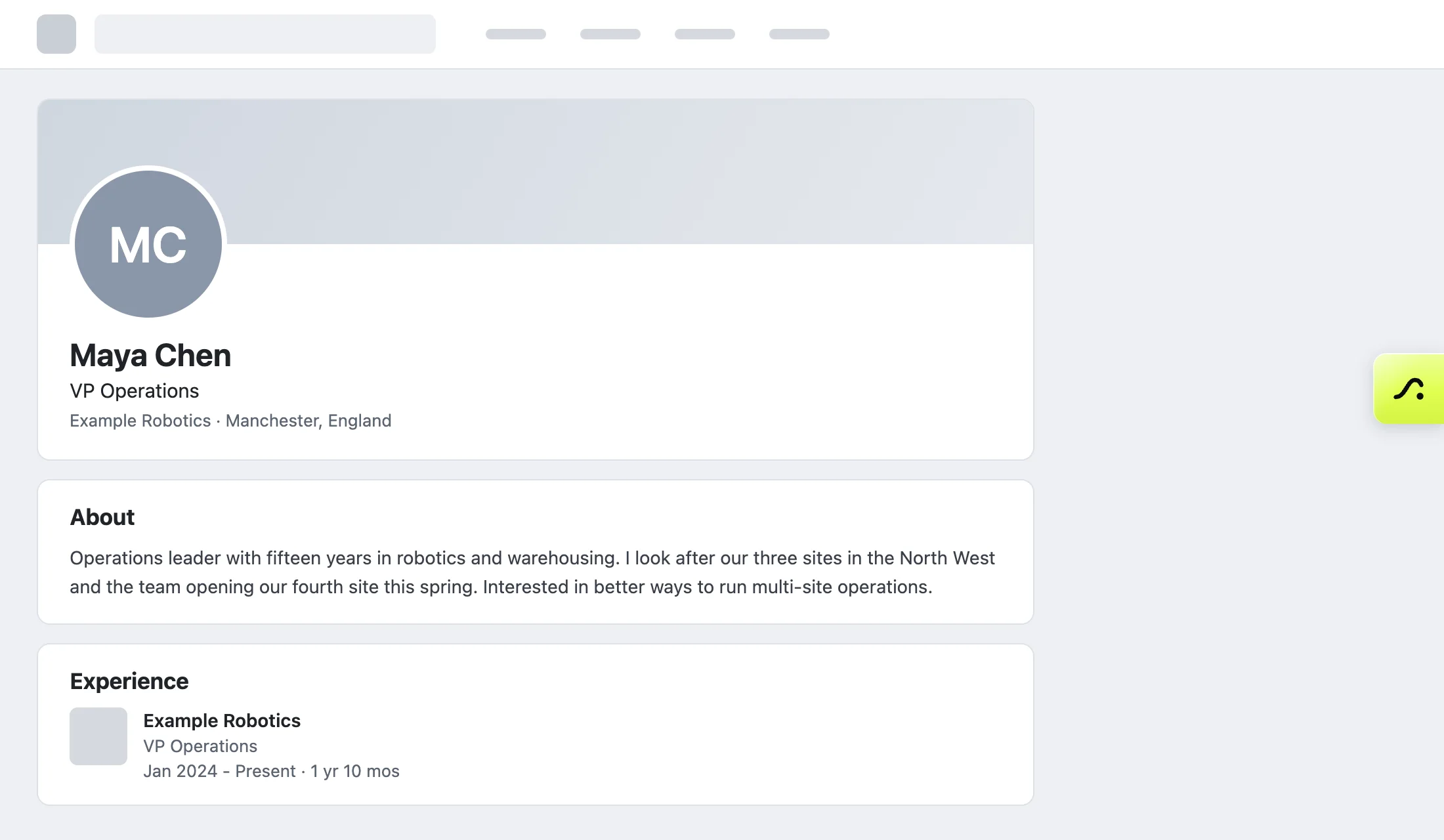
Open a person's LinkedIn profile, a company page or a Sales Navigator lead. A lime-green PitchWhip tab sits on the right edge of the page. Point at it and it says Open PitchWhip; click it to open the panel.
The tab does not show on your feed, search results or messages.
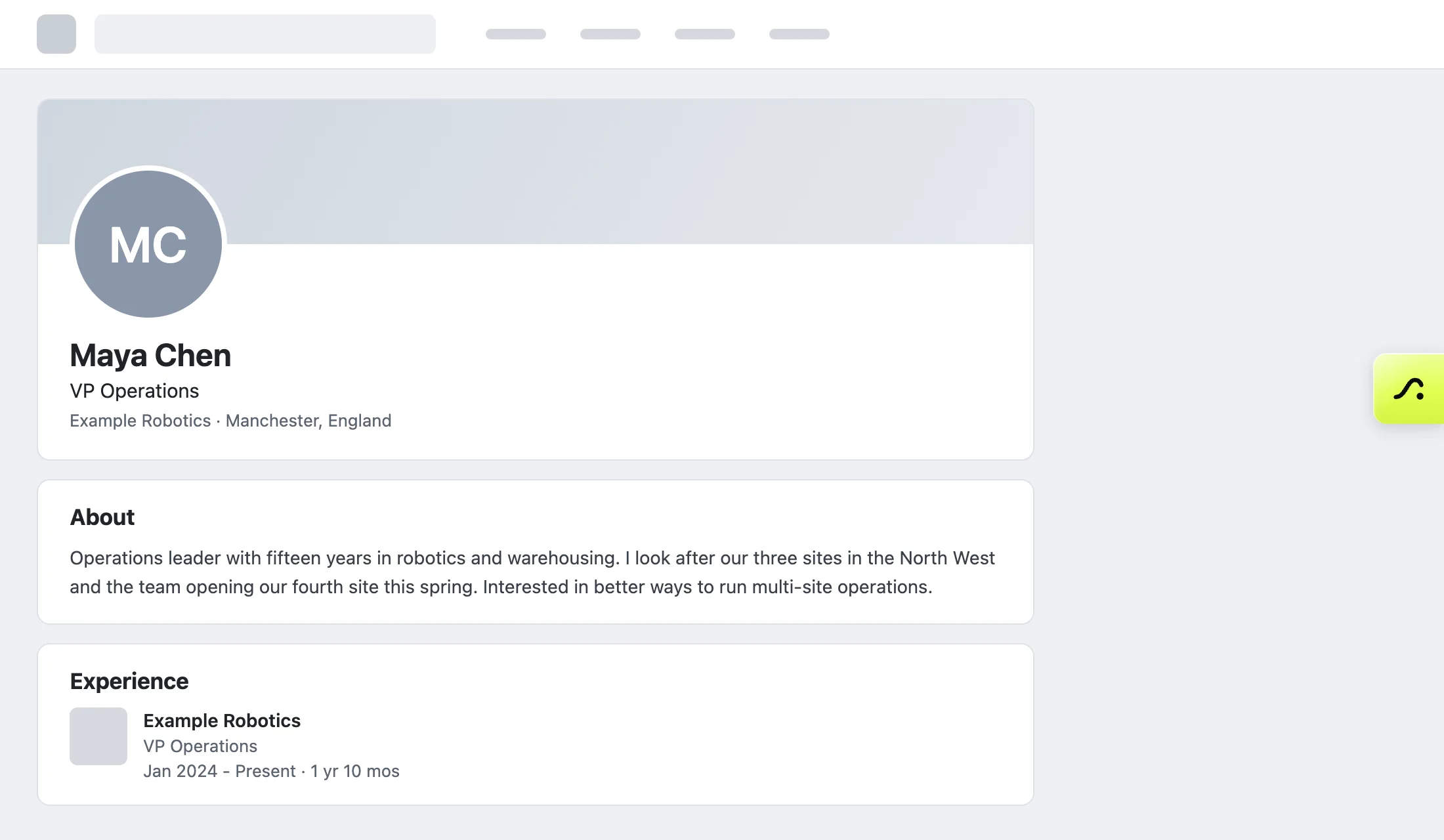
The lime-green PitchWhip tab on the right edge of a profile page. Click the picture to see it full size.
Common problems
- I can't see the PitchWhip tab.
- Make sure you are on a person's profile, a company page or a Sales Navigator lead, not the feed or a search page. Then check Settings, LinkedIn behaviour: PitchWhip is on and Show the PitchWhip button on LinkedIn pages should both be switched on. If you have just installed, reload the LinkedIn tab once.
- The Add to Chrome button is missing.
- Your company may manage which extensions Chrome can install. Ask your IT team to allow PitchWhip; our Security page answers the usual questions.
- I use Edge or Safari.
- PitchWhip is built and tested for desktop Chrome.
Still stuck? The full guide covers every setting, or write to hello@pitchwhip.com and a person replies within a working day.